Mobile data not working, even though you have a balance, and the signal can be extremely frustrating. Many users face this issue on Android and iPhone, especially after updates, SIM changes, or network issues.
If your mobile data is not working, it’s stopping you from browsing, using WhatsApp, or watching videos. Don’t worry. This guide explains simple and proven fixes that you can try at home. These steps work for most phones and do not require any technical knowledge.
Table of Contents
- Why Is Mobile Data Not Working?
- Quick Fix: Mobile Data Not Working
- Turn Mobile Data Off and On
- Enable Airplane Mode
- Check APN Settings
- Set Network Mode to 4G / LTE
- Restart Your Phone
- Mobile Data Not Working on Android
- Mobile Data Not Working on iPhone
- Check Data Limit Settings
- Disable VPN or Proxy
- Clear Network Settings
- Test SIM Card on Another Phone
- Contact Your Network Provider
- Frequently Asked Questions
- Final Thoughts
Why Is Mobile Data Not Working?
There are several common reasons why mobile data not working on your phone:
- Mobile data is turned off accidentally
- APN settings are incorrect
- Network mode is not set properly
- SIM card issues
- Temporary carrier problems
- Data limit is enabled
- Phone software update is causing issues
The good news is that most mobile data not working issues can be fixed in minutes using the methods below.
🔧 Quick Fix: Mobile Data Not Working (Try First)
If your mobile data is not working, try these quick fixes first:
- Turn mobile data OFF → ON
- Enable Airplane Mode for 30 seconds
- Restart your phone
- Check APN settings
- Set network mode to 4G/LTE
- Disable VPN or proxy
Most mobile data issues are fixed within 2 minutes using these steps.
Turn Mobile Data Off and On
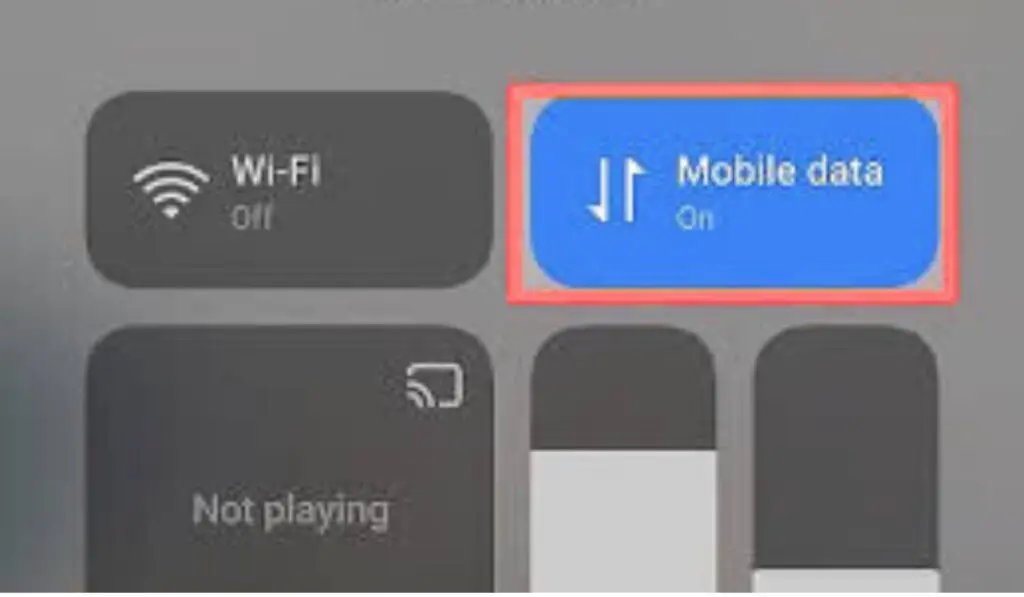
The first thing to try when mobile data not working is refreshing the connection.
Steps:
- Go to Settings
- Turn Mobile Data OFF
- Wait 10 seconds
- Turn Mobile Data ON
This simple step often fixes the issue instantly. This is because turning the data off and on resets the network connection between your phone and the mobile tower.
Enable Airplane Mode for 30 Seconds
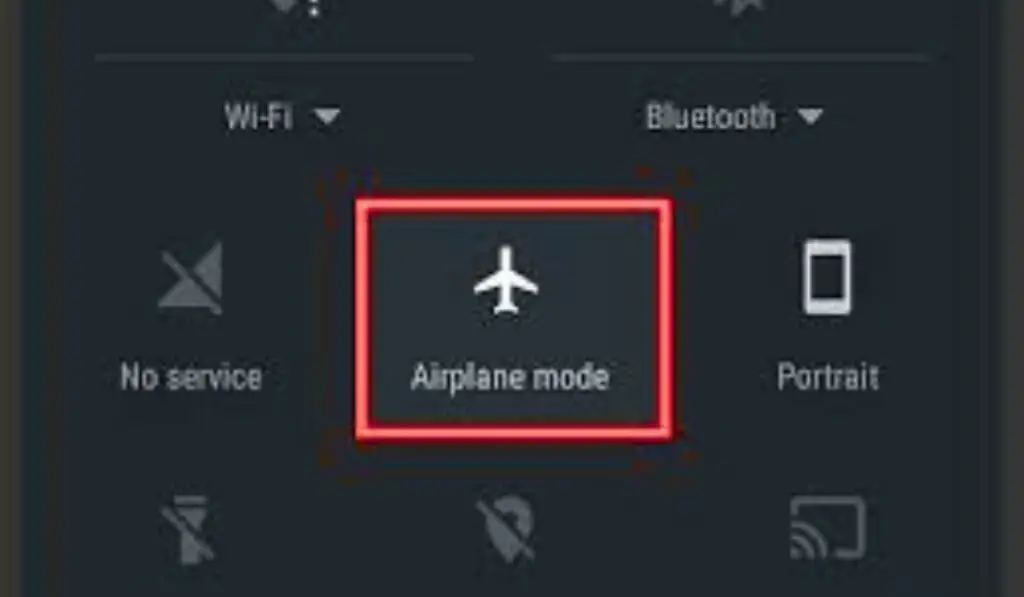
Airplane mode resets network connections and is very effective when mobile data not working.
Steps:
- Turn Airplane Mode ON
- Wait 30 seconds
- Turn it OFF
This method forces your phone to reconnect to the network, which can solve the problem if the connection was stuck or weak.
Check APN Settings (Very Important)
Incorrect APN settings are a major reason for mobile data not working.
How to check:
- Go to Settings → Mobile Network
- Open Access Point Names (APN)
- Select the default APN from your carrier
If you see wrong APN details, your phone will connect to the internet, but it will still show mobile data not working.
📌 If you don’t know the correct APN settings, search on Google:
“APN settings for [your network name]”
Correct APN settings often fix mobile data not working immediately.
Set Network Mode to 4G / LTE
If your phone is stuck on the wrong network mode, mobile data not working can happen.
Steps:
- Go to Settings → Mobile Network
- Tap Preferred Network Type
- Select 4G/LTE/Auto
This ensures your phone uses the correct network for internet data. Sometimes phones get stuck on 2G or 3G which causes slow speed or mobile data not working.
Restart Your Phone
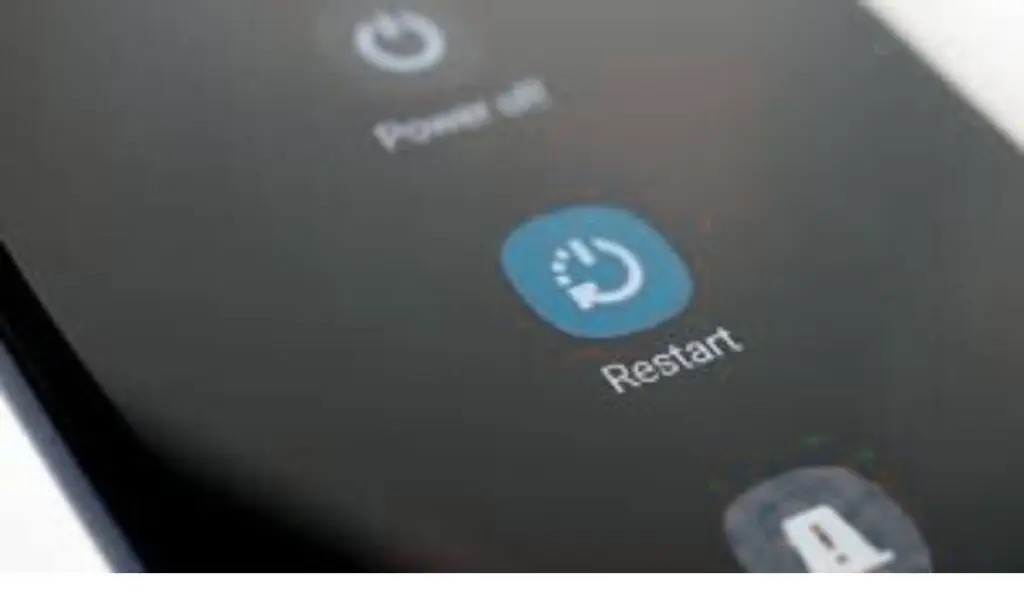
Sometimes a simple restart is enough when mobile data is not working.
- Press and hold the power button
- Tap Restart
- Wait for the phone to boot
This clears temporary glitches causing the issues. Restarting also helps after software updates or app installations that may affect network performance.
📱 Mobile Data Not Working on Android
If mobile data is not working on Android phones, check these additional settings:
- Make sure Background Data is enabled
- Disable Battery Saver / Data Saver mode
- Update Google Carrier Services
- Reset APN to default
Android phones often block data in the background, which can make it look like internet is not working.
Mobile Data Not Working on iPhone
If mobile data is not working on the iPhone:
- Go to Settings → Cellular → Cellular Data ON
- Enable LTE / 5G
- Turn OFF Low Data Mode
- Reset Network Settings
iPhones sometimes block mobile data after iOS updates.
Check Data Limit Settings
If you have a data limit set on your phone, your issue may be due to reaching that limit.
Steps:
- Go to Settings → Data Usage
- Disable Data Limit
- Enable Unrestricted Data
Many users accidentally set a data limit and forget about it. This causes the phone to stop using mobile data even though balance is available.
Disable VPN or Proxy
If you are using a VPN or proxy, it may block your mobile data connection.
Steps:
- Open VPN app
- Turn it OFF
- Try mobile data again
If the problem disappears after disabling VPN, the VPN server may be blocked or overloaded.
Clear Network Settings (Last Option)
If none of the above fixes work, resetting network settings may solve the problem.
Steps:
- Go to Settings → System
- Tap Reset Options
- Select Reset Network Settings
⚠️ This will remove saved WiFi networks and Bluetooth connections, so only use this if necessary.
Resetting network settings is a strong fix because it restores all network settings to default.
Test SIM Card on Another Phone
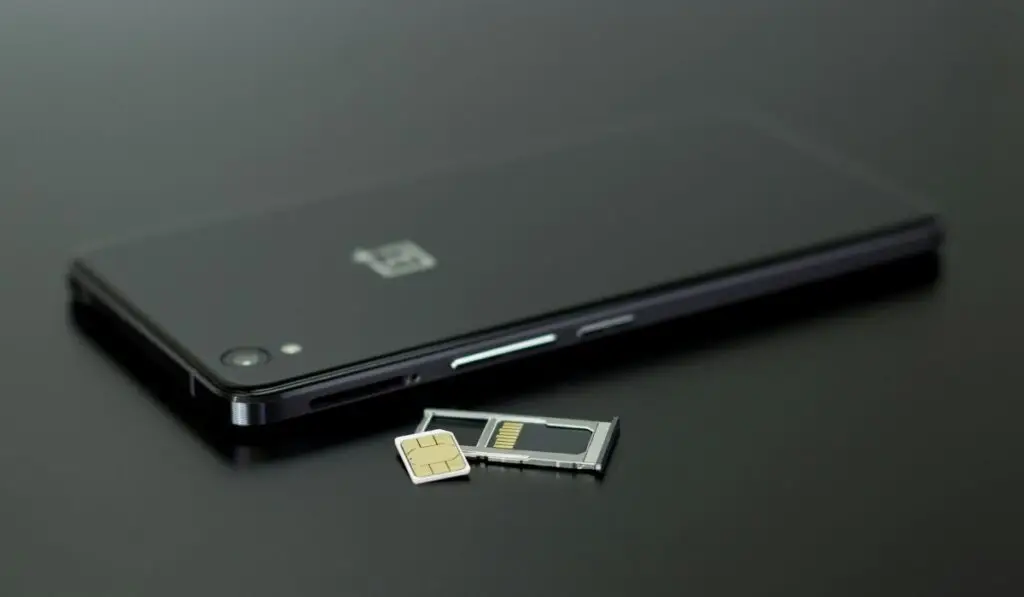
If mobile data not working even after all fixes:
- Insert the SIM into another phone
- Turn on mobile data
If it still doesn’t work, the issue may be with the SIM or carrier. In this case, you should contact your service provider.
Contact Your Network Provider
If multiple users in your area report mobile data not working, it may be a network outage.
Call customer support and confirm:
- No service suspension
- No maintenance in your area
- No temporary network issues
Your provider can also check if your SIM is working properly.
If your issue is not related to mobile data and instead your phone is connected to WiFi but the internet is not working, check out our detailed guide on how to fix WiFi connected but no internet. That guide explains the most common WiFi problems and easy fixes that work on both Android and iPhone.
FAQ’s:
❓Why is my mobile data not working even though I have a balance?
Mobile data may not work even with a balance due to incorrect APN settings, disabled mobile data, wrong network mode (2G/3G), enabled data limits, or temporary network issues from your carrier.
❓How do I fix mobile data not working on Android?
To fix mobile data on Android, turn mobile data off and on, enable airplane mode for 30 seconds, check APN settings, set network mode to 4G/LTE, disable data saver, and restart the phone.
❓Why is mobile data connected but no internet?
This usually happens due to incorrect APN settings, VPN interference, weak network signal, or temporary carrier problems. Resetting APN and disabling VPN often fixes the issue.
❓Does resetting network settings fix mobile data issues?
Yes, resetting network settings can fix mobile data problems by restoring default network configurations. It removes saved WiFi and Bluetooth connections but often resolves persistent data issues.
❓Can a SIM card cause mobile data not to work?
Yes, a damaged or inactive SIM card can stop mobile data from working. Testing the SIM in another phone helps confirm whether the issue is with the SIM or the phone.
Final Thoughts
When mobile data not working, the problem is usually small and fixable. By checking mobile data settings, APN, network mode, and SIM card, most users can solve the issue quickly.
If this guide helped you, fix your issue. Explore more troubleshooting guides on Phone Fix Guide for easy solutions.
🔗 Related Fixes:
- WiFi Connected but No Internet – Easy Fixes
- Android Apps Not Working – Common Causes & Solutions