A smartphone’s touch screen is its most critical interface. When your android touch screen not working properly, even simple tasks feel impossible—typing messages, unlocking the phone, scrolling through apps, or answering calls. Over the years, I’ve handled hundreds of Android devices with touch issues, and one thing is clear: most touch screen problems are fixable without replacing the phone.
Whether your phone touch is not responding intermittently, your Android screen lagging, or you’re facing a noticeable touch screen delay android, this in-depth guide will help you understand why it happens and how to fix it step by step.
This article covers software bugs, hardware damage, environmental factors, and user mistakes, along with proven solutions that actually work.
How an Android Touch Screen Works (Quick Understanding)
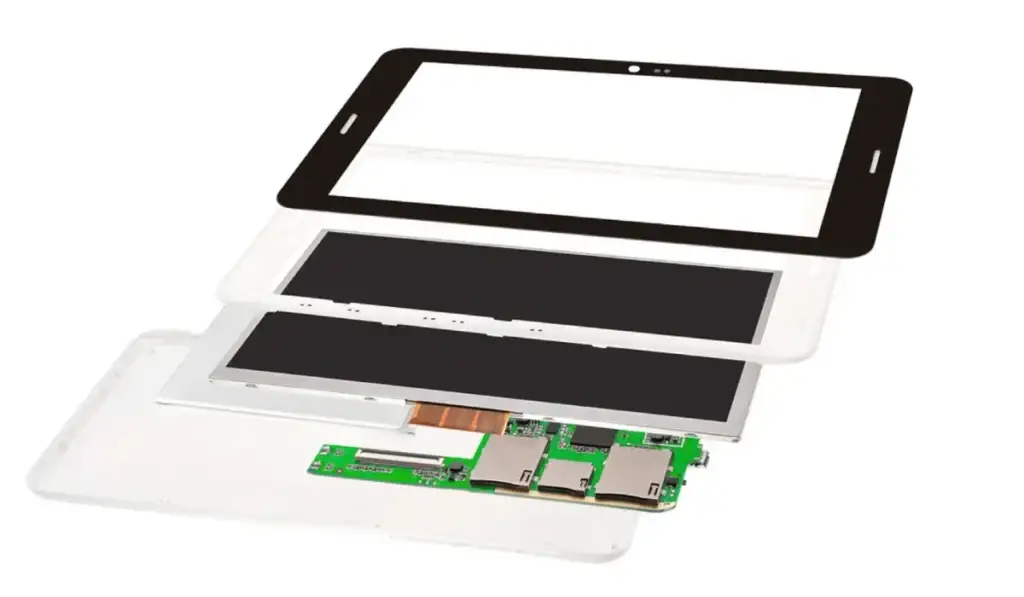
Before fixing the issue, it’s important to understand how touch screens function.
Most Android phones use capacitive touch screens. These screens detect electrical signals from your finger. When anything interferes with this signal—software bugs, moisture, static electricity, damaged glass, or faulty sensors—the android touch screen not working issue appears.
That’s why touch issues are not always caused by physical damage.
Common Symptoms of Android Touch Screen Problems
Different symptoms indicate different root causes. Identify yours first:
- Phone touch not responding at all
- Touch works in some areas but not others
- Touch screen delay Android (slow response)
- Ghost touch (screen moves on its own)
- Android screen lagging while scrolling
- Touch stops working after screen replacement
- Touch works in Safe Mode but not in normal mode
Each symptom points toward a specific fix.
Main Causes of Android Touch Screen Not Working
1. Software Glitches & System Bugs (Most Common)
In my experience, over 40% of touch issues are software-related.
Common triggers:
- Recent Android updates
- Corrupted system cache
- Buggy apps running in the background
- Incomplete firmware updates
This often causes Android screen lagging or delayed touch response.
2. Overloaded RAM or CPU
When your phone runs low on RAM:
- Touch input registers late
- Screen freezes temporarily
- Phone touch not responding during multitasking
This is common on budget or older Android phones.
3. Screen Protector or Tempered Glass Issues
Low-quality or improperly installed screen protectors can:
- Block capacitive signals
- Cause touch dead zones
- Create a touch screen delay for Android
I’ve personally fixed dozens of phones just by removing bad tempered glass.
4. Moisture, Sweat, or Humidity
Capacitive screens react badly to:
- Wet fingers
- High humidity
- Condensation inside the display
This causes ghost touches or random scrolling.
5. Physical Damage (Drops or Pressure)
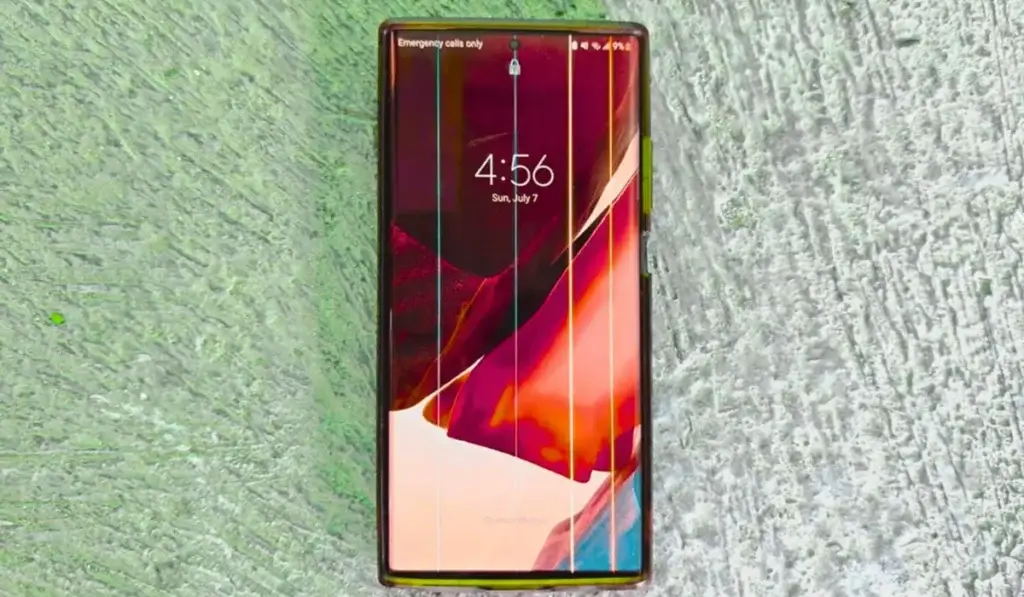
Even if the glass looks fine, internal damage can:
- Break digitizer connections
- Create unresponsive areas
- Cause permanent touch failure
If touch fails in the same spot every time, hardware damage is likely.
6. Faulty Charging Accessories
Cheap or damaged chargers can send unstable voltage, causing:
- Touch malfunction while charging
- Ghost touches
- Android touch screen not working only when plugged in
This is extremely common and often overlooked.
7. Third-Party Apps & Overlays
Apps that:
- Use screen overlays
- Modify gestures
- Display floating widgets
can interfere with touch input.
Step-by-Step Fixes for Android Touch Screen Issues
Now, let’s fix the problem practically.
Fix 1: Restart Your Phone Properly
A basic restart clears:
- Temporary system bugs
- RAM overload
- Touch input glitches
Pro tip (experience-based):
Restart your phone twice, not once. The second reboot often clears leftover cache processes.
Fix 2: Clean the Screen Correctly
Use:
- Microfiber cloth
- Small amount of isopropyl alcohol (70%)
Avoid:
- Tissues
- Glass cleaners
- Water directly on the screen
Even invisible grease can cause the phone’s touch not to respond.
Fix 3: Remove Screen Protector or Case
Remove:
- Tempered glass
- Thick cases pressing on edges
Test touch without accessories.
If touch improves, replace with a high-quality protector.
Fix 4: Test Touch in Safe Mode
Safe Mode disables third-party apps.
Steps (general):
- Press and hold the Power button
- Tap and hold “Power off.”
- Select “Safe Mode”
If touch works fine in Safe Mode:
👉 A third-party app is causing the issue.
Uninstall recently installed apps, especially:
- Launchers
- Screen recorders
- Floating apps
Fix 5: Clear Cache Partition (Highly Effective)
Clearing system cache solves:
- Android screen lagging
- Touch screen delay Android
- Random freezes
Steps vary by brand, but usually involve:
- Power + Volume buttons
- Recovery Mode
- Wipe Cache Partition
⚠️ This does NOT delete personal data.
Fix 6: Update Android System & Apps
Outdated software causes compatibility issues.
- Update Android OS
- Update Google Play Services
- Update system apps
Official guidance is available from Google.
Fix 7: Calibrate Touch Screen (If Available)
Some phones allow touch calibration via:
- Hidden diagnostic menus
- Manufacturer tools
While modern Android versions auto-calibrate, older models benefit from this.
Fix 8: Check While Charging (Important Test)
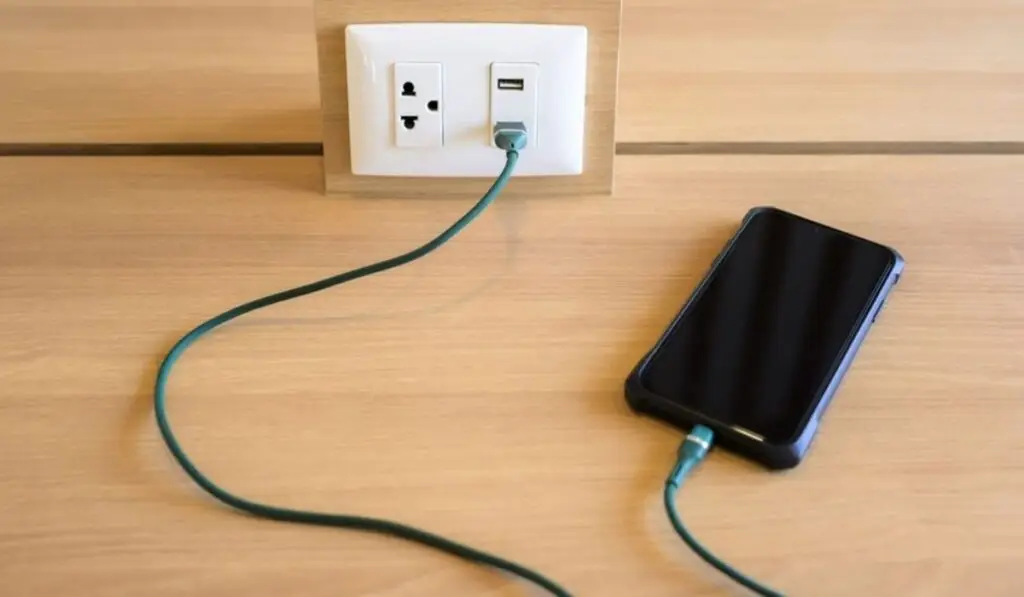
Plug in your charger and test touch.
If touch becomes erratic:
- Replace charger
- Replace cable
- Avoid power extensions
This single step fixes many cases of android touch screen not working while charging.
Fix 9: Factory Reset (Last Software Option)
Only do this after backing up data.
Factory reset fixes:
- Deep system corruption
- Persistent bugs
- Severe lag
If touch still fails after a reset, the hardware is likely at fault.
Hardware-Related Touch Issues (When Fixes Don’t Work)
When to Suspect Hardware Damage
- Touch dead zones stay constant
- Screen flickers
- Touch fails even in Recovery Mode
- Touch stopped after screen replacement
In such cases:
- The digitizer may be faulty
- The connector may be loose
- Screen replacement quality may be poor
Trusted repair insights are available at iFixit.
Brand-Specific Touch Screen Tips
Samsung Phones
- Enable Touch Sensitivity in settings
- Remove cheap screen protectors
Xiaomi / Redmi
- Disable “MIUI Optimization” (developer options)
- Update MIUI fully
Realme / Oppo
- Reset accessibility settings
- Avoid third-party launchers
Preventing Touch Screen Problems (Expert Advice)
Based on years of experience:
- Use original chargers only
- Avoid using the phone while charging
- Clean screen weekly
- Don’t install unnecessary overlay apps
- Keep storage free (low storage causes lag)
If your phone frequently lags, also check:
Android phone overheating fix (fix guide)
When Touch Issues Are Linked to Other Android Problems
Touch issues often appear alongside system instability. You may also find these helpful:
- Android phone keeps restarting automatically
- Apps not opening on Android phone
- Fast charging is not working on the Android Phone
- Android phone turns off suddenly
These problems often share the same root causes.
Expert Resources for Further Reading
For deeper Android analysis and real-world tests, I recommend Android Authority.
Final Thoughts
If your android touch screen not working, don’t panic. In most cases, the issue is software-related or accessory-related, not a dead screen. By following this structured approach, you can diagnose the exact cause and fix it confidently—without wasting money on unnecessary repairs.
Touch problems are frustrating, but they are rarely permanent.
FAQ’s: Android touchscreen not working
❓ Why is my Android touch screen not working suddenly?
Your android touch screen not working suddenly is usually caused by a temporary software glitch, system cache corruption, or a recently installed app. In many cases, restarting the phone or clearing the cache partition restores normal touch response without any data loss.
❓ How do I fix the phone touch not responding properly?
To fix a phone touch not responding, start by cleaning the screen, removing any screen protector, and restarting the device. If the issue continues, boot into Safe Mode to check whether a third-party app is interfering with touch input. This method resolves most software-related touch issues.
❓ Can a screen protector cause a touchscreen delay on Android?
Yes, a low-quality or thick tempered glass can cause touch screen delay android devices often experience. Poor screen protectors block capacitive signals, leading to delayed or missed touch inputs. Removing the protector immediately improves responsiveness in many cases.
❓ Why does my Android screen lag while scrolling or typing?
Android screen lagging while scrolling or typing usually happens due to high RAM usage, background apps, overheating, or outdated software. Clearing unused apps, updating the system, and freeing storage can significantly improve touch smoothness.
❓ Why does my Android touchscreen not work properly while charging?
If your android touch screen not working while charging, the most common reason is a faulty charger or cable. Cheap charging accessories create electrical interference that disrupts touch signals. Always use an original or certified charger to avoid this issue.
❓ Does a factory reset fix Android touch screen not working issues?
A factory reset can fix Android touch screen not working problems if they are caused by deep software corruption or system conflicts. However, if the issue remains after a reset, it usually indicates hardware damage such as a faulty digitizer.
❓ Is touch screen lag a sign of a virus or malware?
In some cases, yes. Malware or poorly coded apps running in the background can cause Android screen lagging and touch delays. Running the phone in Safe Mode or uninstalling suspicious apps helps identify and remove such problems.
❓ Can overheating affect Android touch screen performance?
Yes, overheating can cause the phone’s touch not to respond and delayed touch input. High temperatures affect the digitizer’s accuracy and system performance. If your phone frequently overheats, resolving the heat issue often improves touch responsiveness.
❓ When should I replace my Android phone screen?
You should consider screen replacement only if all software fixes fail and the android touch screen not working issue is confirmed to be hardware-related. Always choose original or high-quality replacement screens to avoid recurring touch problems.