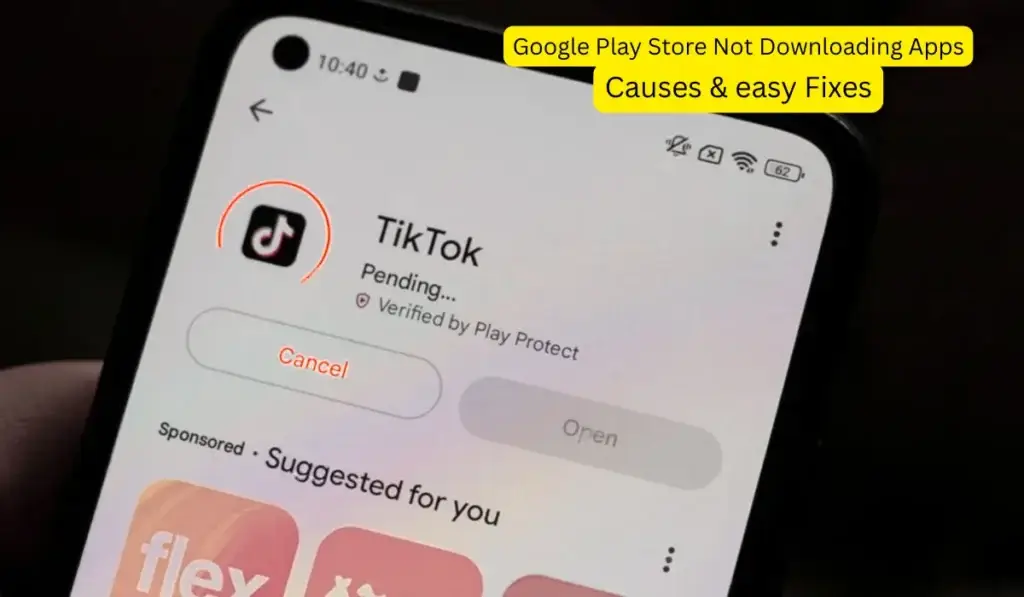
Few Android problems are as frustrating as when the Google Play Store not downloading apps issue appears. You tap “Install,” the download starts… and then it gets stuck on Pending, Downloading, or Waiting for network. Sometimes it doesn’t even start at all.
From hands-on troubleshooting experience, this issue affects new phones, old phones, flagship devices, and budget Androids alike. The Play Store itself is rarely “broken.” Instead, the problem usually lies in network conflicts, system services, storage issues, or Google account sync errors.
In this in-depth guide, you’ll learn why the Google Play Store not downloading apps, how to identify the exact cause, and step-by-step fixes that actually work, explained clearly for beginners.
What Does “Google Play Store Not Downloading Apps” Mean?
When the Google Play Store not downloading apps, you may see:
- Apps stuck on Pending
- Download starts but never finishes
- Play Store shows “Waiting for network.”
- Downloads pause automatically
- App installs fail without error messages
Even though:
- The Internet works in the browser
- You’re signed into Google
- Storage appears available
Real-World Reasons Why the Google Play Store Not Downloading Apps
Based on real Android repair and optimization experience, these are the most common root causes.
1. Network Instability (Wi-Fi or Mobile Data)
Play Store requires a stable, uninterrupted connection. Even brief drops can stop downloads.
This often overlaps with:
2. Google Play Store Cache or Data Corruption
Corrupted cache files are the #1 cause of Play Store download issues.
3. Google Play Services Not Working Properly
Play Store depends on Google Play Services. If it crashes or fails to sync, downloads stop.
4. Insufficient or “Hidden” Storage
Your phone may show free space, but system partitions may be full.
Related guide:
Phone storage is full, but nothing to delete
5. Background Data or Battery Restrictions
Android aggressively limits background services when:
- Battery Saver is ON
- Data Saver is enabled
This silently blocks downloads.
6. Outdated Android System or Play Store Version
Old versions may conflict with newer app packages.
7. Google Account Sync Errors
A corrupted Google account sync breaks Play Store authentication.
8. Overheating or Performance Throttling

When phones overheat, Android restricts background processes.
See:
Android phone overheating fix
Step-by-Step Fixes for Google Play Store Not Downloading Apps
Follow these steps in order. Most users fix the issue before reaching the advanced solutions.
Fix 1: Restart Your Phone (Never Skip)
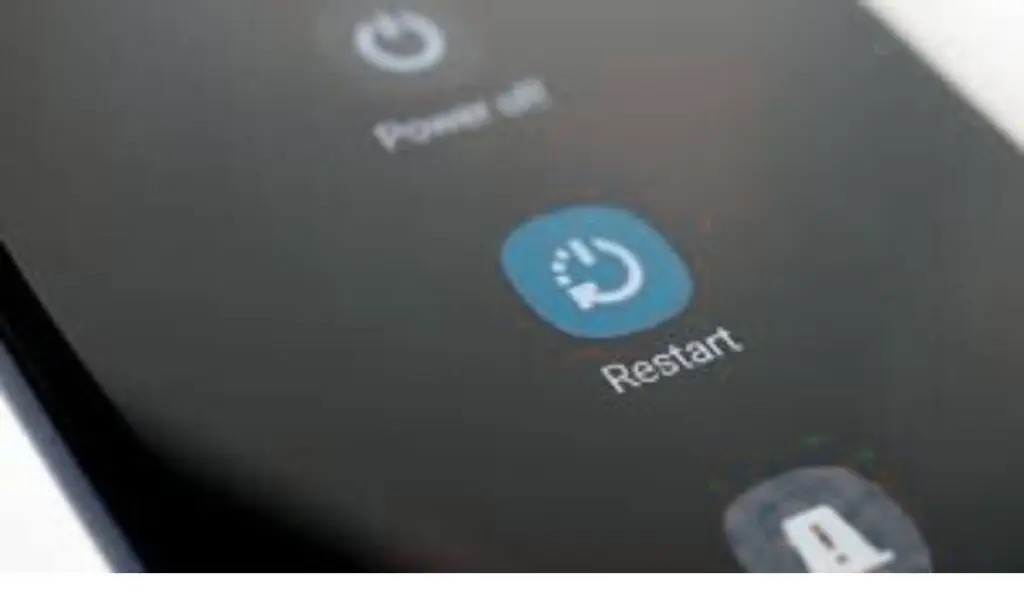
A restart refreshes:
- Network services
- Google background processes
- Temporary system cache
Restart once before trying anything else.
Fix 2: Check Internet Stability (Very Important)
Test both:
- Wi-Fi
- Mobile data
If Wi-Fi is unstable, read:
Phone connected to Wi-Fi, but no internet
If mobile data fails, see:
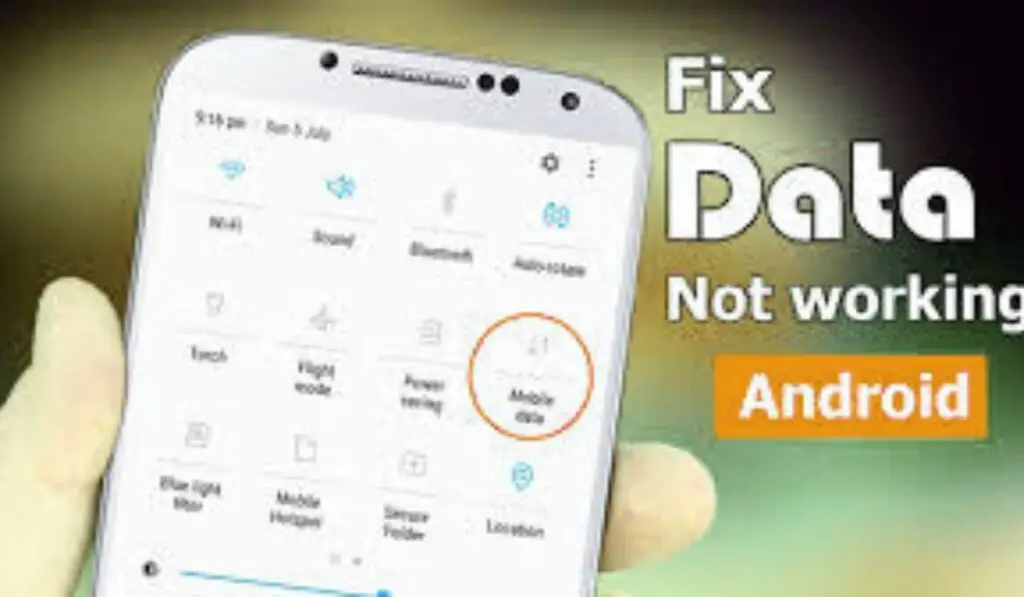
Mobile data is not working
Switch networks and retry the download.
Fix 3: Clear Google Play Store Cache and Data
This fix alone resolves most cases of the Google Play Store not downloading apps.
Steps:
- Settings → Apps → Google Play Store
- Storage & cache
- Clear cache
- Clear storage
Repeat the same steps for:
- Google Play Services
- Google Services Framework
Then restart your phone.
🔗 Google’s official app troubleshooting guide:
Fix 4: Disable Battery Saver and Data Saver
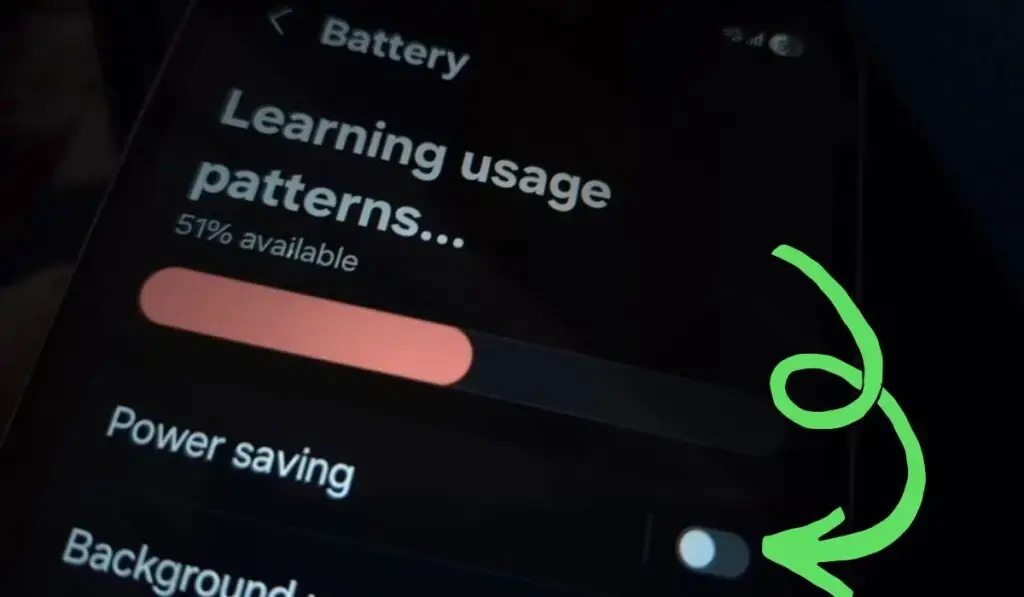
Turn off Battery Saver:
- Settings → Battery → Battery Saver → OFF
Turn off Data Saver:
- Settings → Network & Internet → Data Saver → OFF
If the battery drains unusually fast, read:
The Android phone battery is draining fast
Fix 5: Check Storage Space Properly
Even with “free space,” downloads may fail.
Go to:
- Settings → Storage
- Ensure at least 1.5–2 GB free
If storage looks full but nothing to delete, see:
Phone storage is full, but nothing to delete
Fix 6: Update Google Play Store & Services
Open Play Store → Profile → Settings → About
Check for Play Store updates.
Outdated versions often cause compatibility failures.
Fix 7: Remove and Re-Add Google Account
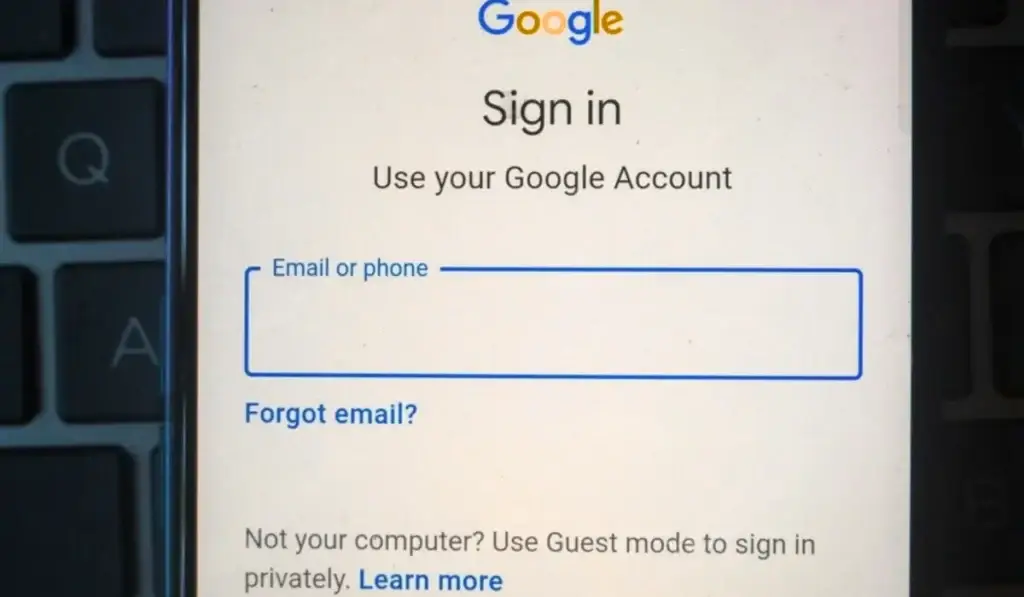
This resolves authentication and sync issues.
Steps:
- Settings → Accounts → Google
- Remove account
- Restart phone
- Add the Google account again
This fix is highly effective when downloads stay stuck on Pending.
Fix 8: Check Date & Time Settings
Incorrect time breaks Google authentication.
- Settings → Date & Time
- Enable Automatic date & time
Fix 9: Reset Network Settings
Resets:
- Wi-Fi
- Mobile data
- Bluetooth
No personal data is deleted.
If SIM issues exist, read:
SIM card detected, but no service
Fix 10: Disable VPN or DNS Apps
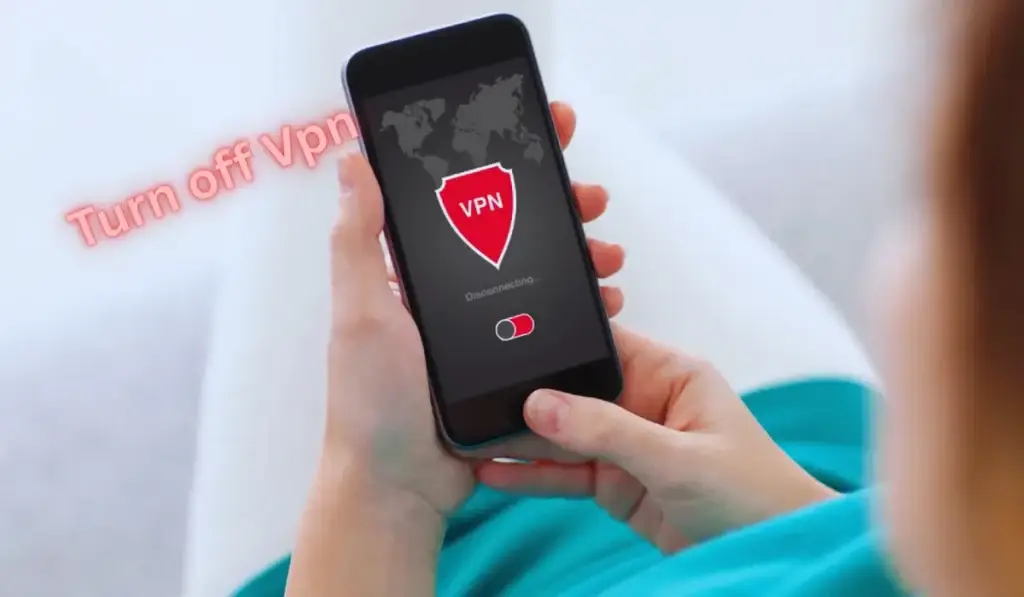
VPNs frequently block Play Store traffic.
Disable:
- VPN apps
- Private DNS
- Ad blockers
Then retry the download.
Fix 11: Check Download Preferences
Play Store may restrict downloads to Wi-Fi only.
- Play Store → Settings → Network preferences
- Set downloads to Any network
Fix 12: Try Installing in Safe Mode
Safe Mode disables third-party apps.
If downloads work in Safe Mode:
- A third-party app is blocking the Play Store
- Common culprits: VPNs, battery optimizers, firewalls
Fix 13: Update Android System
System bugs can break Play Store dependencies.
- Settings → Software Update
- Install updates
- Restart phone
If the phone shuts down during updates, read:
The Android phone turns off suddenly
Fix 14: Factory Reset (Last Resort)
Only if all fixes fail.
Backup data first. This resolves deep system corruption.
When Play Store Issues Appear with Other Problems
From experience, Google Play Store not downloading apps often appears alongside:
- Apps not opening on Android phone
- WiFi keeps disconnecting on the Android phone
- Mobile hotspot connected, but no internet
- Android phone charging slowly fix (power instability)
These indicate broader system or network issues.
External Trusted References
- Google Play download troubleshooting – Google Support
- Android app installation issues – Android Help
- Android storage and app behavior – Android Central
Final Verdict (Experience-Based)
In real-world troubleshooting, Google Play Store not downloading apps is almost never a hardware issue.
Most cases are fixed by:
- Clearing Play Store & Services data
- Fixing storage limitations
- Removing the Google account
- Stabilizing network
Only consider a factory reset if every other solution fails.
✅ FAQs: Google Play Store Not Downloading Apps
❓ Why is the Google Play Store not downloading apps even with a working internet?
When the Google Play Store not downloading apps happens despite a working internet, the most common causes are a corrupted Play Store cache, Google Play Services issues, background data restrictions, or unstable network switching between Wi-Fi and mobile data. Clearing the cache and restarting the phone usually fixes it.
❓ How do I fix the Google Play Store stuck on pending?
If your Play Store is stuck on pending, try these steps:
Clear the cache and storage of the Google Play Store and Google Play Services
Disable VPN or DNS apps
Turn off Battery Saver and Data Saver
Check if storage space is actually available
This resolves most Google Play Store download problems.
❓ Can low storage cause the Google Play Store not downloading apps?
Yes. Even if storage appears free, hidden system partitions may be full. This often causes Android apps not downloading or installs failing silently. Free at least 1.5–2 GB of storage to fix Play Store download issues.
❓ Does Google Play Services affect app downloads?
Absolutely. Google Play Store depends on Google Play Services. If it’s outdated or corrupted, you’ll face the Google Play Store not downloading apps or apps stuck on downloading. Clearing Play Services cache and updating it solves the problem.
❓ Why does the Play Store download start and then pause automatically?
This usually happens due to:
Battery Saver restrictions
Background data limits
Network switching issues
Disabling battery optimization restores normal Play Store downloads.