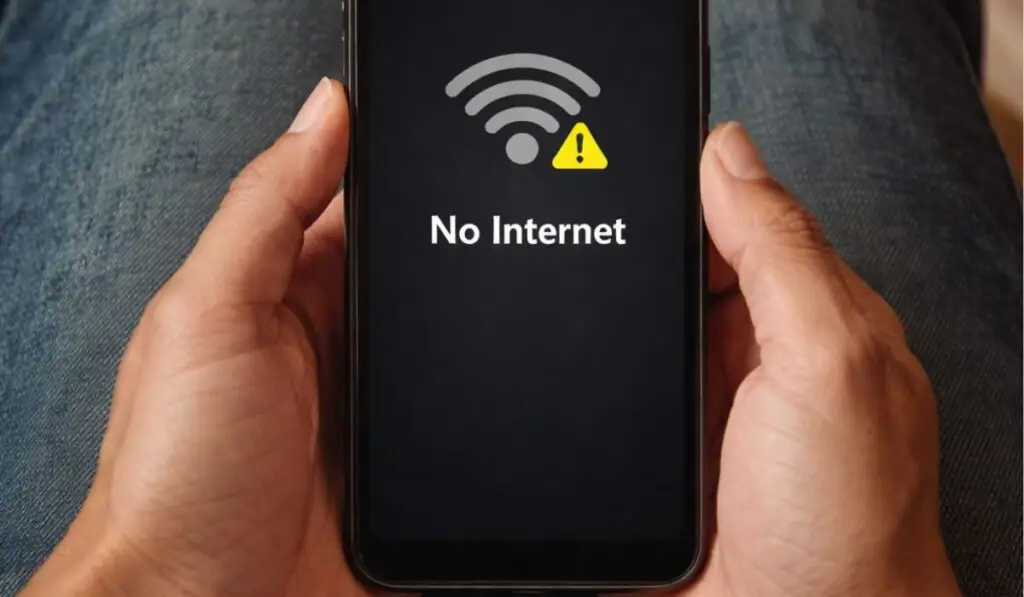

Seeing the message “SIM card detected but no service” on your Android phone can be confusing and stressful. Your phone recognizes the SIM card, yet you can’t make calls, send texts, or use mobile data. Signal bars disappear, emergency calls only appear, and your phone feels useless despite having an active SIM.
This problem affects both new and old Android phones, and from real troubleshooting experience, it is rarely caused by a faulty SIM alone. In most cases, it’s a network configuration issue, software conflict, or signal registration failure.
In this in-depth guide, you’ll learn why a SIM card detected but no service happens, how to diagnose the real cause, and step-by-step fixes that actually work, explained in simple language.
What Does “SIM Card Detected but No Service” Mean?

When Android shows SIM card detected but no service, it means:
- Your phone can read the SIM card
- The SIM is inserted correctly
- But the phone fails to register with your carrier’s network
In real usage, this results in:
- No signal bars
- “No service” or “Emergency calls only”
- Mobile data is not working
- Calls and SMS are failing
This issue can appear suddenly—even if the phone worked perfectly before.
Real-World Reasons Why SIM Card Detected but No Service Occurs
Based on hands-on Android troubleshooting, these are the most common root causes.
1. Temporary Network Registration Failure
Sometimes your phone fails to authenticate with the carrier network after:
- Restart
- Software update
- Airplane mode usage
- Location change
This is extremely common and often overlooked.
2. Carrier Network Outage or Maintenance
Even when SIM is detected, your carrier may be:
- Experiencing a temporary outage
- Performing tower maintenance
- Facing regional signal disruption
This often mimics a phone issue. And you face: “Sim card detected but no Service.”
3. Incorrect Network Mode Settings
If your phone is locked to an unsupported network mode (for example, LTE only in a 3G area), it will show no service.
4. APN or Mobile Network Configuration Errors
APN errors usually cause mobile data not to work, but in many real cases, they also block network registration completely.
👉 Related guide: Mobile data not working
5. Software Bugs After Android Updates
Major Android updates frequently break:
- Carrier profiles
- Network authentication
- SIM registration services
This is one of the top reasons users report “no service” after an update.
6. SIM Card Wear or Micro Damage
Even if detected, an old or scratched SIM may:
- Fail to authenticate
- Disconnect intermittently
- Lose signal randomly
7. Phone Overheating or Power Management
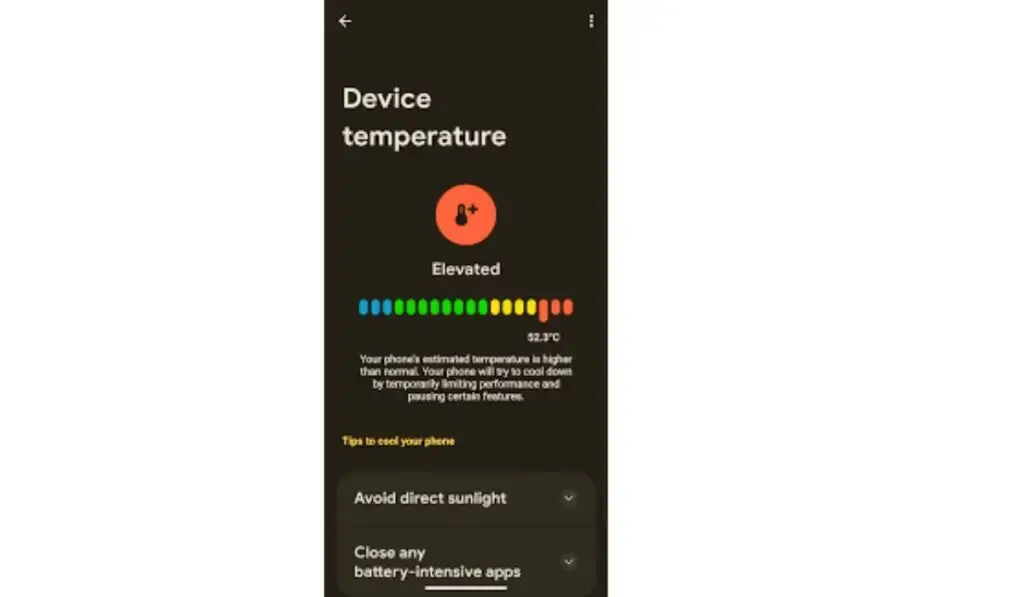
From experience, phones that overheat disable radios (including cellular) to protect hardware.
👉 Read more: Android phone overheating fix
8. Hardware Antenna or Baseband Issues
This is rare, but possible after:
- Phone drops
- Water exposure
- Unauthorized repairs
Step-by-Step Fixes for SIM Card Detected but No Service
Follow these solutions in order. Most users fix the issue (Sim Card Detected But No Service) before reaching the advanced steps.
Fix 1: Restart Phone and Reinsert SIM (Don’t Skip)
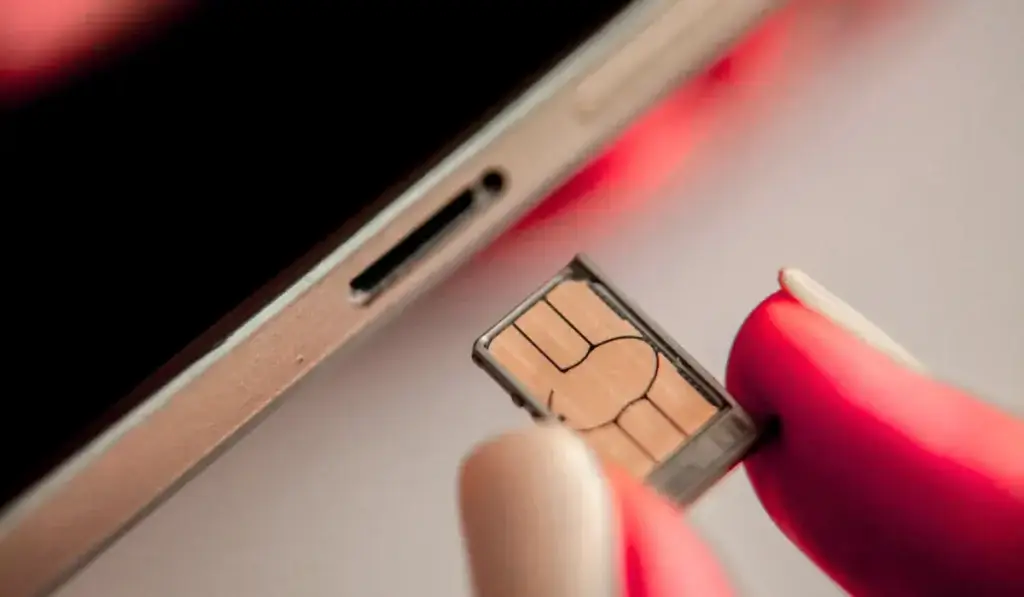
This sounds basic, but it works more than expected.
- Power off the phone
- Remove the SIM card
- Clean the SIM gently with a dry cloth
- Reinsert properly
- Power on and wait 2–3 minutes
This forces fresh network registration.
Fix 2: Turn Airplane Mode ON and OFF

This manually refreshes the carrier connection.
- Enable Airplane mode (30 seconds)
- Disable it
- Wait for the signal
This fix alone resolves many cases of a SIM card detected but no service.
Fix 3: Check Network Mode (Very Important)
Incorrect network mode is a silent killer.
Steps:
- Settings → Mobile Network
- Preferred network type
- Select Auto / LTE / 3G / 2G
Avoid forcing LTE-only unless your area fully supports it.
Fix 4: Manually Select Network Operator
Automatic selection sometimes fails.
Steps:
- Settings → Mobile Network
- Network operators
- Turn off “Select automatically.”
- Choose your carrier manually
If your carrier appears but fails to register, continue troubleshooting.
Fix 5: Reset APN Settings
APN issues can block network access entirely.
Steps:
- Settings → Mobile Network
- Access Point Names (APN)
- Reset to default
- Restart phone
🔗 APN reference (authoritative):
Fix 6: Disable Battery Saver and Data Saver
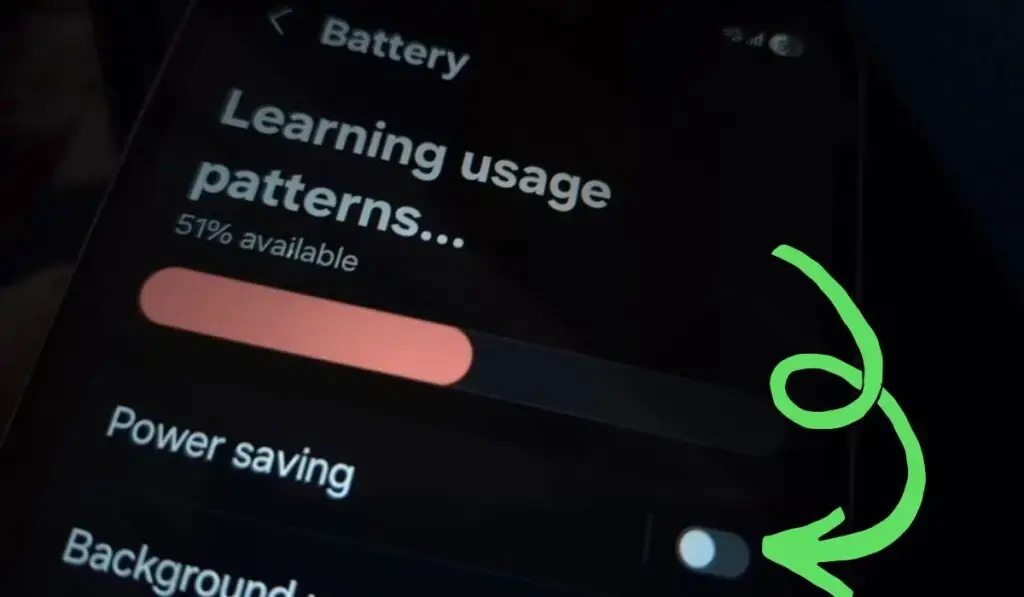
Aggressive power management can disable network background services.
- Battery Saver → OFF
- Data Saver → OFF
If battery issues exist, see:
The Android phone battery is draining fast
Fix 7: Update Android Software
Outdated firmware can contain broken modem files.
- Settings → Software update
- Install updates
- Restart phone
If your phone randomly powers off during updates, check:
The Android phone turns off suddenly
Fix 8: Reset Network Settings (Highly Effective)
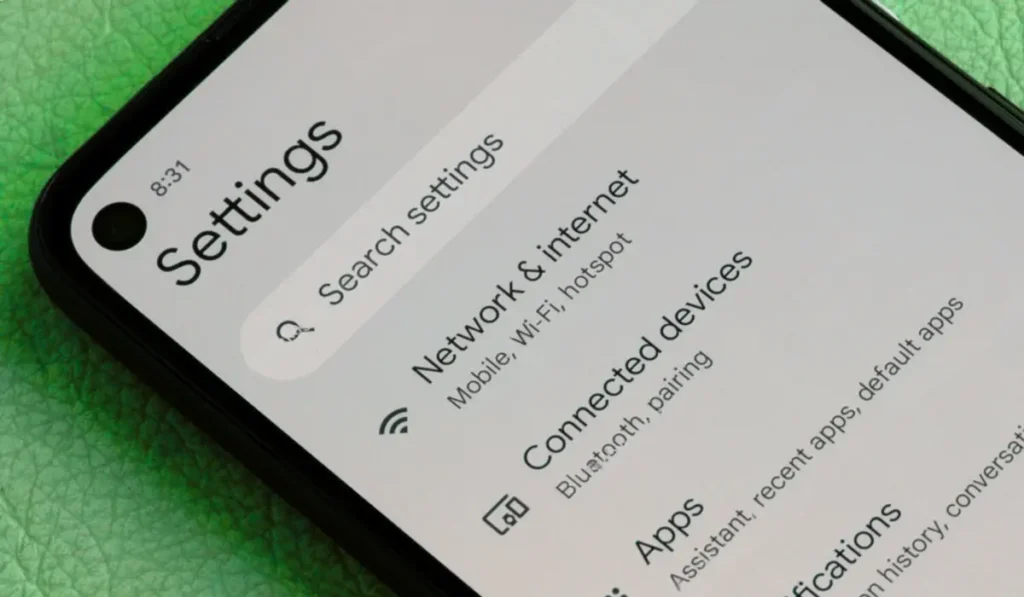
This resets:
- Mobile network
- Wi-Fi
- Bluetooth
No personal data is deleted.
Steps:
- Settings → System
- Reset options
- Reset network settings
- Restart
Fix 9: Test SIM in Another Phone
This step separates SIM issues from phone issues.
- SIM works in another phone → your phone is the problem
- SIM fails everywhere → SIM or carrier issue
Fix 10: Check for Carrier Restrictions or SIM Suspension
From real experience, many “no service” cases are billing-related.
Contact your carrier and confirm:
- SIM is active
- No suspension
- IMEI not blocked
🔗 Carrier policy reference:
https://www.gsma.com/aboutus/what-we-do/services/imei
Fix 11: Safe Mode Test
Boot into Safe Mode to rule out app conflicts.
If service works in Safe Mode:
- A third-party app is interfering
- VPNs, boosters, or system cleaners are common culprits
Fix 12: Factory Reset (Last Software Option)
Only use this after backing up data.
This resolves deep system corruption but should be your final step before repair.
When SIM Issues Trigger Other Android Problems
In real-world cases, a SIM card detected but no service often appears alongside:
- WiFi keeps disconnecting on Android phone
- Phone connected to Wi-Fi but no internet
- Mobile hotspot connected, but no internet
- Apps not opening on Android phone
These point to broader network stack instability.
External Trusted References (Authority)
- Android network troubleshooting – Google Support
- APN and network configuration guide – Android Central
Final Verdict (From Experience)
When a SIM card detected but no service appears, 90% of cases are software, network, or configuration-related, not hardware failures.
In real troubleshooting:
- Airplane mode reset
- Network mode correction
- APN reset
- Network settings reset
…solve the issue in most cases.
Only consider repair if:
- SIM works in other phones
- All software fixes fail
- The phone suffered physical damage
🔹 FAQs: SIM Card Detected but No Service
❓ Why is my SIM card detected but no service showing on Android?
When SIM card detected but no service appears, it means your phone reads the SIM card but fails to register with the carrier network. This usually happens due to incorrect network mode, temporary carrier outage, software bugs, or SIM authentication failure.
❓ How do I fix SIM card detected but no service on Android?
To fix SIM card detected but no service, restart the phone, reinsert the SIM card, toggle airplane mode, set network mode to automatic, reset APN settings, disable battery saver, and reset network settings if needed.
❓ Why does my phone say no service but SIM detected after restart?
After restart, the phone may fail to authenticate with the carrier network. This temporary network registration failure is common and usually fixed by toggling airplane mode or manually selecting the network operator.
❓ Why does my SIM work in another phone but not mine?
This usually indicates a phone-side issue such as corrupted network settings, software bugs, overheating, or antenna problems — not a faulty SIM card.
❓ Can overheating cause SIM card detected but no service?
Yes. When an Android phone overheats, it may disable cellular radios to protect hardware, resulting in SIM detected no signal Android errors.