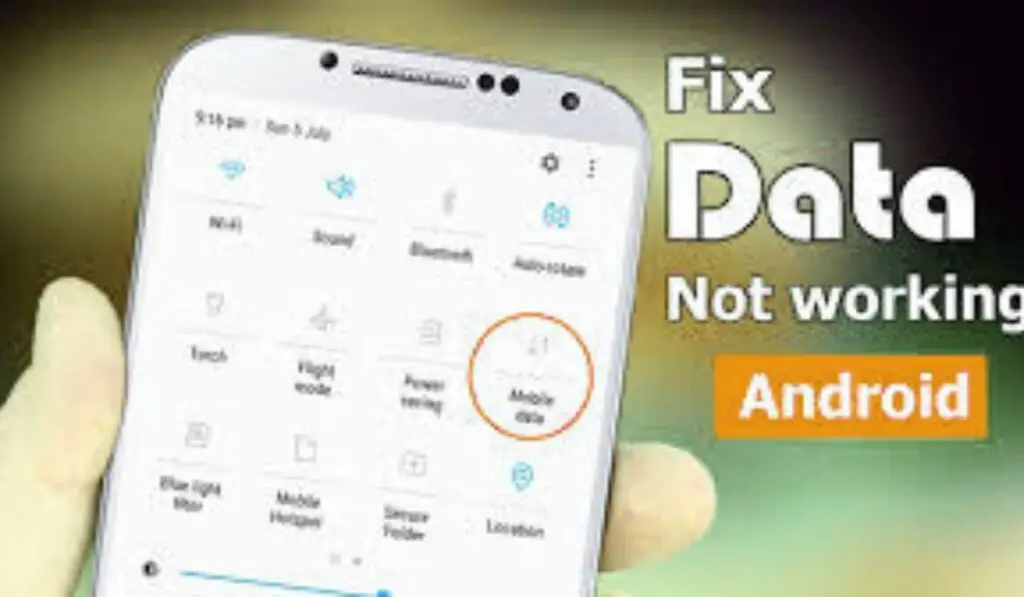
Mobile hotspot is one of the most useful features on an Android phone. It lets you share your mobile data with a laptop, tablet, or another phone when Wi-Fi isn’t available. But many users face a frustrating issue where the mobile hotspot connected, but no internet works on the connected device.
You see full signal bars. The device connects successfully. Yet websites don’t load, apps show no connection, and everything feels stuck.
If this sounds familiar, don’t worry. This guide will walk you through every possible reason and fix, step by step, in simple language — even if you’re not tech-savvy.
What Does “Mobile Hotspot Connected, But No Internet” Mean?
When your mobile hotspot connected but, no internet, it usually means:
- The hotspot connection is working
- But mobile data is not being shared correctly
In most cases, the problem lies in:
- Mobile data restrictions
- APN (Access Point Name) issues
- Android system bugs
- Carrier limitations
- Incorrect hotspot configuration
This is not always a hardware problem, and most users can fix it themselves.
Common Reasons for Mobile Hotspot Connected, But No Internet
Let’s understand the root causes first before jumping into fixes.
1. Mobile Data Is Not Working Properly
If your phone’s mobile data is unstable or disconnected, the hotspot cannot share the internet.
👉 If mobile data itself isn’t working, check this detailed guide:
Mobile data is not working
2. Carrier restricts Data Sharing
Many carriers:
- Limit hotspot usage
- Reduce speed after a quota
- Block the hotspot completely on some plans
This is especially common on prepaid or budget data plans.
3. Incorrect APN Settings
APN settings control how your phone connects to the internet.
Wrong or outdated APN = mobile hotspot connected, but no internet.
4. VPN or Private DNS Interference
VPNs and custom DNS services often block hotspot traffic, even if mobile data works normally on the phone.
5. Battery Saver or Data Saver Is Enabled
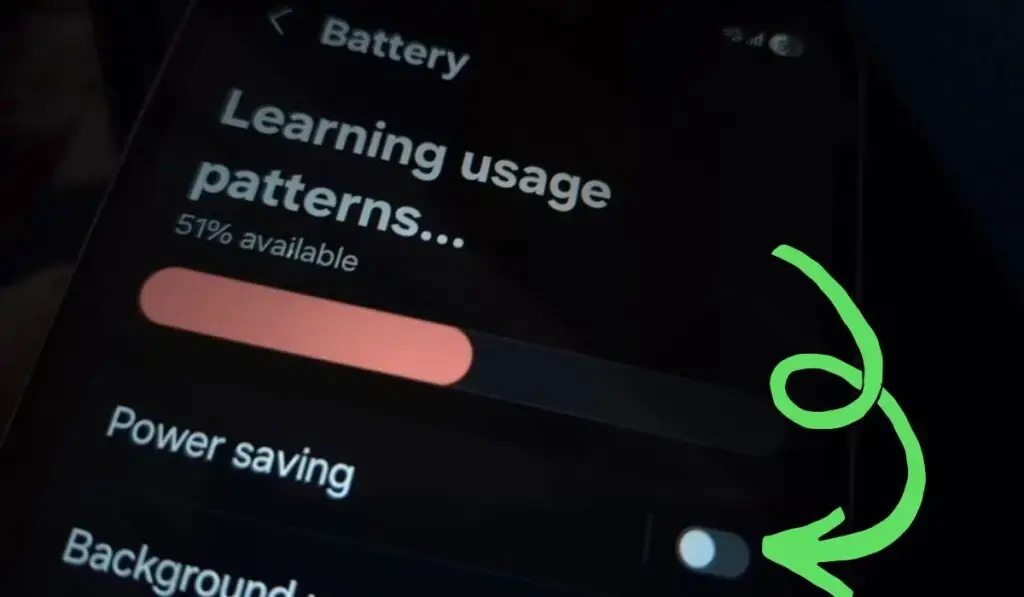
Android aggressively restricts background data when:
- Battery Saver is ON
- Data Saver is enabled
This can break hotspot internet sharing.
6. Software Bugs or System Cache Issues
Android updates sometimes introduce bugs that affect tethering and hotspot services.
7. Device Compatibility Problems
Older laptops, TVs, or tablets may connect to hotspot Wi-Fi but fail to access the internet due to:
- Wi-Fi band mismatch
- IP assignment issues
Step-by-Step Fixes for Mobile Hotspot Connected, But No Internet
Follow these fixes in order. Most users solve the issue within the first few steps.
Fix 1: Check If Mobile Data Works on Your Phone
Before blaming hotspot settings:
- Turn OFF hotspot
- Open Chrome or YouTube
- Test mobile data
If the internet doesn’t work on your phone either, the hotspot won’t work.
✔️ Fix mobile data first using this guide:
Mobile data is not working
Fix 2: Restart Both Devices (Don’t Skip This)
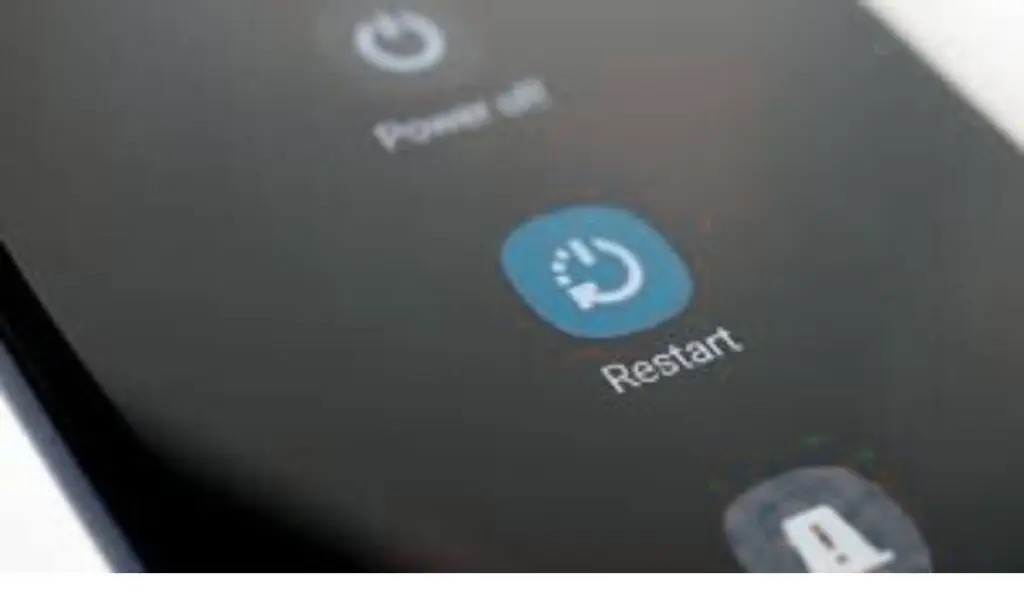
A simple restart fixes temporary network glitches.
- Restart your Android phone
- Restart the connected device (laptop/phone)
- Enable hotspot again
This refreshes:
- IP assignment
- Network routing
- System services
Fix 3: Turn Off VPN and Private DNS
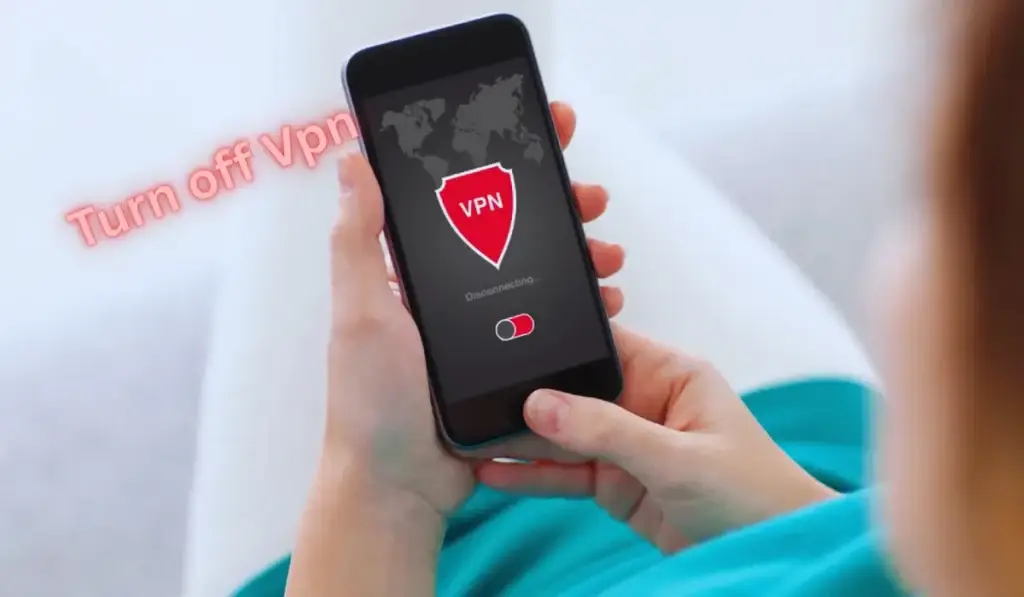
VPNs are one of the top hidden reasons behind hotspot issues.
Disable VPN:
- Settings → VPN → Disconnect
Disable Private DNS:
- Settings → Network & Internet
- Private DNS → Automatic / Off
Reconnect the hotspot and test again.
Fix 4: Disable Battery Saver & Data Saver
Turn OFF Battery Saver:
- Settings → Battery → Battery Saver → OFF
Turn OFF Data Saver:
- Settings → Network & Internet → Data Saver → OFF
These features silently block hotspot data sharing. And you will face the issue “mobile hotspot connected, but no internet “
Fix 5: Check Hotspot Band (Very Important)
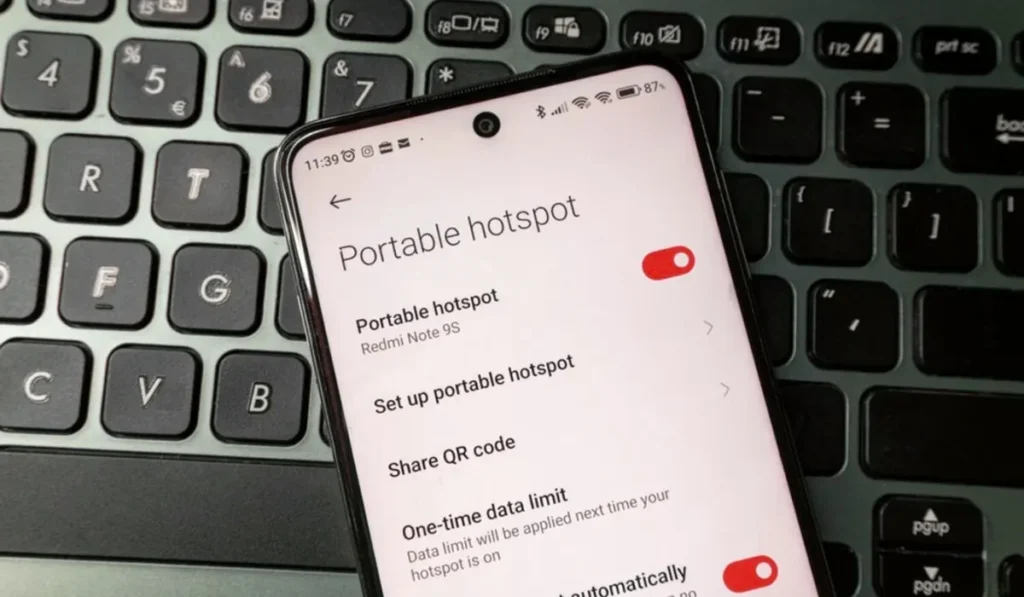
Many older devices don’t support 5GHz Wi-Fi.
Change Hotspot Band:
- Settings → Hotspot & Tethering
- Wi-Fi Hotspot
- AP Band → Select 2.4GHz
Reconnect your device.
Fix 6: Reset APN Settings (High Success Rate)
An incorrect APN is a major cause of a mobile hotspot connected, but no internet.
Reset APN:
- Settings → Mobile Network
- Access Point Names (APN)
- Tap Reset to Default
- Restart phone
If needed, manually enter APN details from your carrier’s official website.
🔗 Reference APN info.
Fix 7: Check Hotspot Data Limit Settings
Android allows setting a data limit for the hotspot.
- Settings → Hotspot & Tethering
- Hotspot settings
- Disable data limit (if enabled)
Once the limit is reached, the mobile hotspot connected, but no internet.
Fix 8: Forget and Reconnect Hotspot Network
On the connected device:
- Forget the hotspot Wi-Fi
- Reconnect from scratch
- Enter the password again
This forces a fresh IP and DNS assignment.
Fix 9: Reset Network Settings (Safe but Powerful)
This resets:
- Wi-Fi
- Mobile data
- Bluetooth
No personal data is deleted.
Steps:
- Settings → System
- Reset options
- Reset network settings
- Restart phone
Fix 10: Update Android System
System bugs often affect tethering.
- Settings → Software Update
- Install the latest update
- Restart phone
If your phone overheats during hotspot use, check:
Android phone overheating fix
Fix 11: Test With Another Device
Connect:
- Another phone
- Another laptop
If hotspot works on one device but not another, the issue (mobile hotspot connected, but no internet) is device-specific, not your phone.
Fix 12: Carrier-Side Restrictions (Reality Check)
Some carriers:
- Block hotspot on certain plans
- Throttle speed to unusable levels
Contact customer support or check your plan details.
🔗 Carrier reference (general).
Advanced Troubleshooting (For Persistent Issues)
Change Hotspot Password
Simple, but effective against authentication bugs.
Use USB Tethering Instead
- Connect the phone to the PC via USB
- Enable USB tethering
More stable than a Wi-Fi hotspot.
When Hotspot Causes Other Android Problems
Long hotspot usage may lead to:
If your phone shuts down randomly during hotspot use, read:
The Android phone turns off suddenly
Related Android Connectivity Issues You May Face
Hotspot issues often come with other network problems:
- Phone connected to Wi-Fi, but no internet
- Apps not opening on Android phone
- Fast charging not working on Android
- Phone battery percentage jumps suddenly
These problems are usually linked to software bugs or power management restrictions.
🔹 FAQs: Mobile Hotspot Connected, But No Internet
❓ Why is my mobile hotspot connected, but no internet is working?
This usually happens when mobile data is not shared correctly due to incorrect APN settings, active VPN, data saver mode, carrier restrictions, or a temporary Android network glitch. Even though the hotspot connects, the internet fails to pass through.
❓ How do I fix a mobile hotspot connected, but no internet on Android?
To fix this issue, restart both devices, turn off VPN and private DNS, disable battery/data saver, reset APN settings, change hotspot band to 2.4GHz, and ensure your mobile data is working properly.
❓ Can a VPN cause a hotspot connected but no internet on Android?
Yes. VPNs often block tethering traffic. When a VPN is enabled, hotspot-connected devices may show no internet access even though mobile data works on the phone.
❓ Why does my laptop say connected but no internet when using Android hotspot?
This usually occurs due to Wi-Fi band incompatibility, DNS issues, cached network data, or hotspot restrictions. Switching the hotspot band to 2.4GHz and reconnecting the network often fixes it.
❓ Why does hotspot work on one device but not another?
This indicates a device-specific issue, not a hotspot problem. Older devices may not support 5GHz hotspots or may have DNS and IP assignment issues.
Final Verdict
The mobile hotspot connected, but no internet issue is frustrating — but rarely serious.
In most cases, the fix is:
- Turning off VPN
- Resetting APN
- Changing hotspot band
- Disabling battery/data saver
Follow this guide step by step, and you’ll restore hotspot internet without visiting a repair shop.
If the problem still persists after all fixes, your carrier plan is likely the limiting factor.