If apps not opening on Android phone is driving you crazy, you’re not alone. This is one of the most common Android problems, where apps crash immediately, freeze on the loading screen, or refuse to open at all. The issue can affect social media apps, games, banking apps, or even built-in system apps.
This complete fix guide explains why apps not opening on Android phone happens and provides step-by-step solutions that work on Samsung, Xiaomi, Oppo, Vivo, Realme, and all other Android devices.
Quick answer: Apps usually don’t open because of low storage, corrupted cache, unstable internet, battery restrictions, overheating, or Android system bugs. Fixing these issues restores normal app behavior.
This page is designed as a central Android app troubleshooting hub. It not only fixes apps that won’t open, but also connects you to in-depth Android fix guides for storage, internet, battery, performance, and system-level problems—making it the ultimate resource for resolving Android app issues.
Quick Fix Checklist:
- Restart your phone
- Check available storage
- Clear app cache
- Verify internet connection
- Disable battery optimization
- Update apps and the Android system
Why Are Apps Not Opening on Android Phone?
When apps not opening on Android phone, it usually happens due to one or more of the following reasons:
- Corrupted app cache or data
- Low phone storage
- Internet connection issues
- Outdated Android system
- App compatibility problems
- Background process conflicts
- Google Play Services errors
Understanding the cause helps you apply the right fix instead of randomly trying solutions.
1. Restart Your Phone First (Do Not Skip)
A simple restart can fix temporary system glitches.
Steps:
- Press and hold the Power button
- Tap Restart
- Wait for the phone to reboot
Many users find that apps not opening on Android phone is resolved immediately after restarting.
2. Check Available Storage Space
Low storage is one of the top reasons apps stop opening.
Android needs free space to:
- Run apps
- Create temporary files
- Load app data properly
What to do:
- Go to Settings → Storage
- Make sure at least 15–20% storage is free
👉 If your phone shows storage full, follow our detailed guide on
Phone Storage Full But Nothing to Delete
to safely clear hidden files and cache.
3. Clear App Cache (Most Effective Fix)
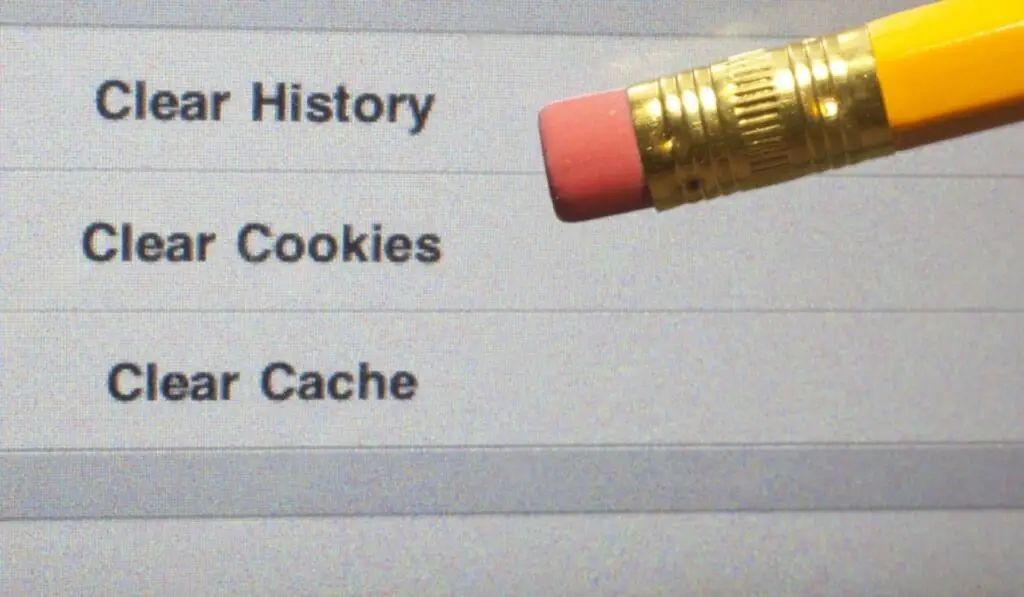
Corrupted cache files often cause apps not opening on Android phone.
Steps:
- Settings → Apps
- Select the app not opening
- Tap Storage
- Tap Clear Cache
⚠️ Do NOT tap “Clear Data” unless necessary.
According to Google’s Android documentation, clearing cache removes temporary files that can cause app crashes.
4. Check Internet Connection (Very Important)
Some apps require a stable internet connection to open.
If:
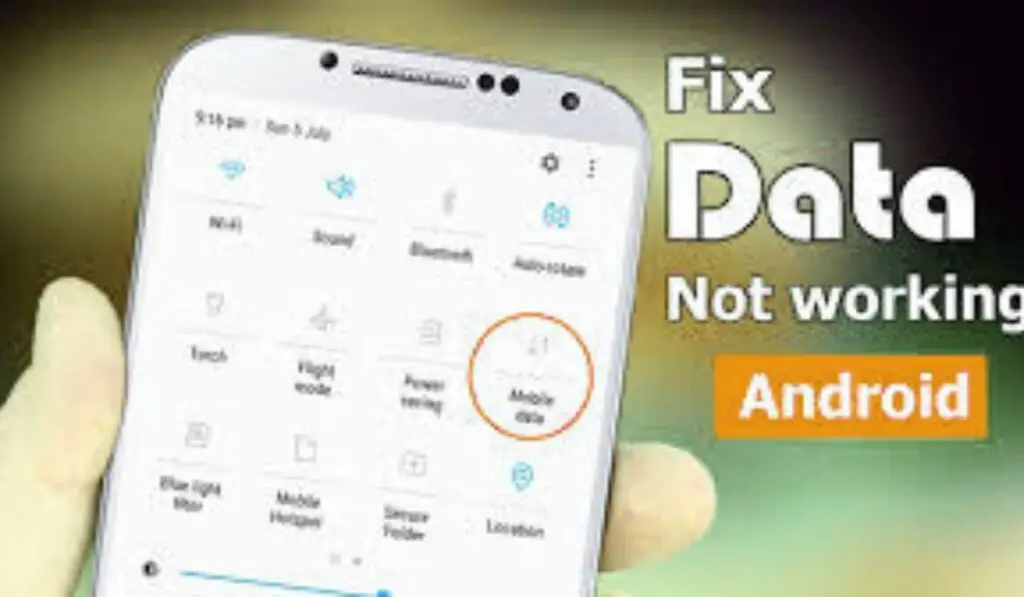
- Mobile data is on, but apps won’t load
- WiFi is connected, but nothing opens
Then the problem may be your network.
👉 Read our complete guide on
Mobile Data Not Working
to fix cellular internet issues.
👉 Also check
Phone Connected to WiFi but No Internet
If apps fail on WiFi.
Unstable internet is a hidden reason why apps not opening on Android phone.
5. Force Stop the App
Apps stuck in a bad state may fail to launch.
Steps:
- Settings → Apps
- Select the problematic app
- Tap Force Stop
- Reopen the app
This refreshes the app’s background processes.
6. Update the App from the Play Store
Outdated apps may not work on newer Android versions.
Steps:
- Open Google Play Store
- Search the app
- Tap Update
Google recommends keeping apps updated for security and compatibility. You can visit Google Play Apps updates to check it out.
7. Update Android System Software
System bugs can cause apps not opening on Android phone, especially after partial updates.
Steps:
- Settings → Software Update
- Download and install the latest update
Manufacturers often release fixes for app crashes and performance issues.
8. Check App Permissions
Some apps won’t open without the required permissions.
Steps:
- Settings → Apps
- Select app
- Permissions
- Allow required permissions (Storage, Network, etc.)
Incorrect permissions can silently block apps from launching.
9. Disable Battery Optimization for the App
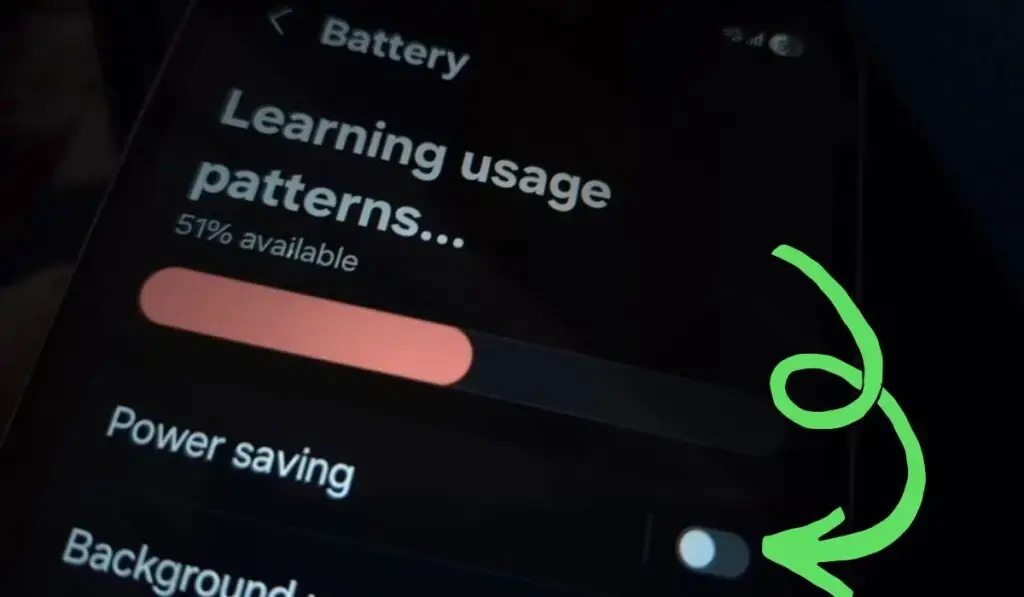
Aggressive battery optimization can kill apps instantly.
Steps:
- Settings → Battery
- App Battery Usage
- Select app
- Set to Unrestricted / No Restrictions
This fix is especially helpful when apps not opening on Android phone after updates.
10. Clear Google Play Services Cache
Many apps depend on Google Play Services.
Steps:
- Settings → Apps
- Google Play Services
- Storage
- Clear Cache
A corrupted Play Services cache can affect multiple apps at once.
11. Boot Phone into Safe Mode
Safe Mode helps identify third-party app conflicts.
Steps:
- Press the Power button
- Tap and hold Power Off
- Select Safe Mode
If apps open fine in Safe Mode:
- A recently installed app is causing the issue
- Uninstall suspicious apps one by one
12. Reinstall the App
If one specific app refuses to open:
Steps:
- Uninstall the app
- Restart phone
- Reinstall from the Play Store
This fixes corrupted installations, causing apps not opening on Android phone.
13. Reset App Preferences
This resets disabled apps and background restrictions.
Steps:
- Settings → Apps
- Tap three dots → Reset App Preferences
⚠️ This does NOT delete personal data.
14. Check Date & Time Settings
An incorrect time can break app authentication.
Steps:
- Settings → Date & Time
- Enable Automatic Date & Time
This surprisingly fixes login-based apps not opening.
15. Factory Reset (Last Resort)
Only if nothing works.
Before resetting:
- Backup data
- Sync Google account
A factory reset fixes deep system-level issues, causing apps not opening on Android phone.
Fix Android Apps Not Opening – Complete Troubleshooting Hub
If apps are not opening on your Android phone is part of a bigger issue; your device may be facing deeper system or performance problems. Use the guides below to fix related Android issues that commonly prevent apps from opening properly.
🔧 Storage & Performance Fixes
- Phone Storage Full But Nothing to Delete – Clear hidden cache and system data that blocks apps from running.
🌐 Internet & Network Fixes
- Mobile Data Not Working – Fix cellular internet issues that stop apps from loading.
- Phone Connected to WiFi but No Internet – Solve WiFi problems where apps fail to open despite connection.
🔋 Battery & Power Fixes
- Android Phone Battery Draining Fast – Stop aggressive background killing that crashes apps.
- Android Phone Overheating Fix – Prevent thermal shutdowns that force apps to close.
These guides work together to resolve every major cause of apps not opening on Android phones, making this page the main hub for Android app troubleshooting.
Final Thoughts
When apps not opening on Android phone, the issue is usually related to storage, cache, internet, or system settings—not a hardware fault. By following this guide step by step, you can fix the problem without visiting a repair shop.
If your phone also suffers from storage or internet issues, make sure to read our related guides for complete phone troubleshooting.
FAQs
❓ Why are apps not opening on my Android phone?
Apps may fail to open due to low storage, corrupted cache files, outdated apps, or unstable internet connections.
❓ Will clearing the cache delete my personal data?
No. Clearing cache only removes temporary files and does not delete photos, messages, or app data.
❓ What if my phone storage is full but nothing to delete?
This usually happens because of hidden cache files and system data. Follow our guide on u003cstrongu003eu003ca href=u0022https://phonefixguide.online/phone-storage-full-but-nothing-to-delete/u0022 data-type=u0022postu0022 data-id=u00222333u0022u003ePhone Storage Full But Nothing to Deleteu003c/au003eu003c/strongu003e to fix it safely.
❓ Why do apps not open even when WiFi is connected?
Your WiFi may be connected without internet access. You can fix this by following our guide on u003cstrongu003eu003ca href=u0022https://phonefixguide.online/phone-connected-to-wifi-but-no-internet/u0022 data-type=u0022postu0022 data-id=u00222288u0022u003ePhone Connected to WiFi but No Internetu003c/au003eu003c/strongu003e.
❓ Is a factory reset required to fix apps not opening?
A factory reset should be the last option. Most app issues can be fixed without resetting the phone.