Are you seeing a warning that your phone storage is full but nothing to delete, even though you’ve already removed photos, videos, and apps? This frustrating issue affects millions of Android users and can slow down your phone, block app updates, and prevent new files from saving.
In this complete guide, we’ll explain why your phone storage is full but nothing to delete happens, and show you step-by-step fixes to free up space safely—without deleting important data.
Why Does My Phone Say Storage Is Full?
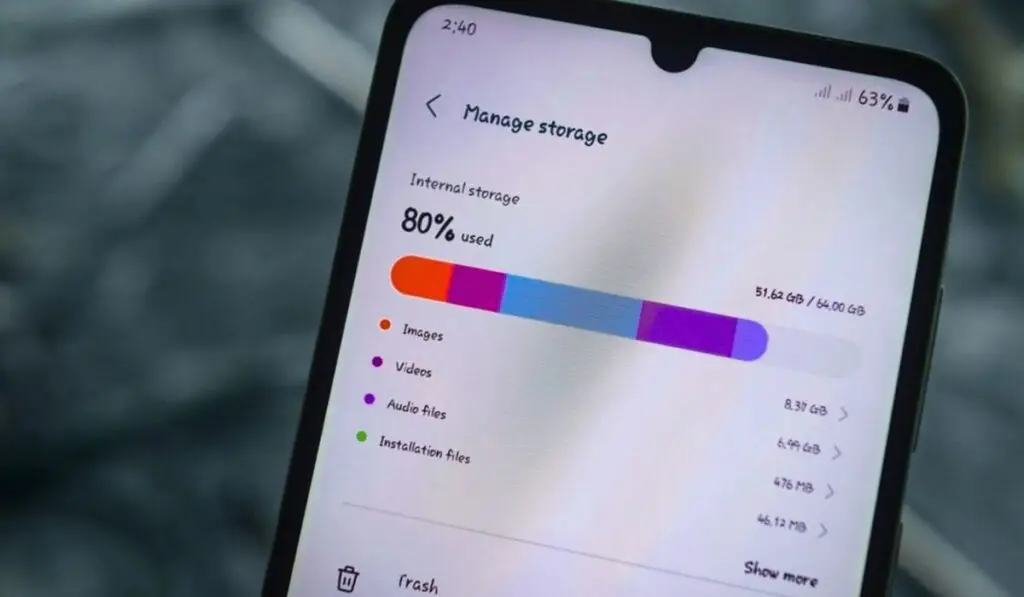
When your phone reports phone storage full but nothing to delete, it’s usually caused by hidden files or system data that users don’t normally see.
Common reasons include:
- App cache buildup
- System files are growing too large
- WhatsApp / Telegram media storage
- Duplicate files
- Hidden junk files
- Corrupted storage index
Let’s fix each cause one by one.
1. Clear App Cache (Most Effective Fix)
Apps silently store cache files that pile up over time.
Steps (Android):
- Go to Settings
- Tap Apps
- Select large apps (Chrome, YouTube, Facebook)
- Tap Storage
- Tap Clear Cache
⚠️ Do NOT tap Clear Data unless you understand the risk.
This alone often fixes phone storage full but nothing to delete.
According to Google’s official Android documentation, clearing app cache helps remove temporary files that consume storage space over time. So, it’s verified that, by clearing the cache, the issue phone storage full but nothing to delete, can be resolved.
2. Use Built-In Storage Cleaner
Most Android phones have a built-in cleaner.
Steps:
- Open Settings → Storage
- Tap Clean Now or Free Up Space
- Review junk files
- Delete recommended items
This removes temporary and unused files safely.
3. WhatsApp & Telegram Media Is the Hidden Culprit
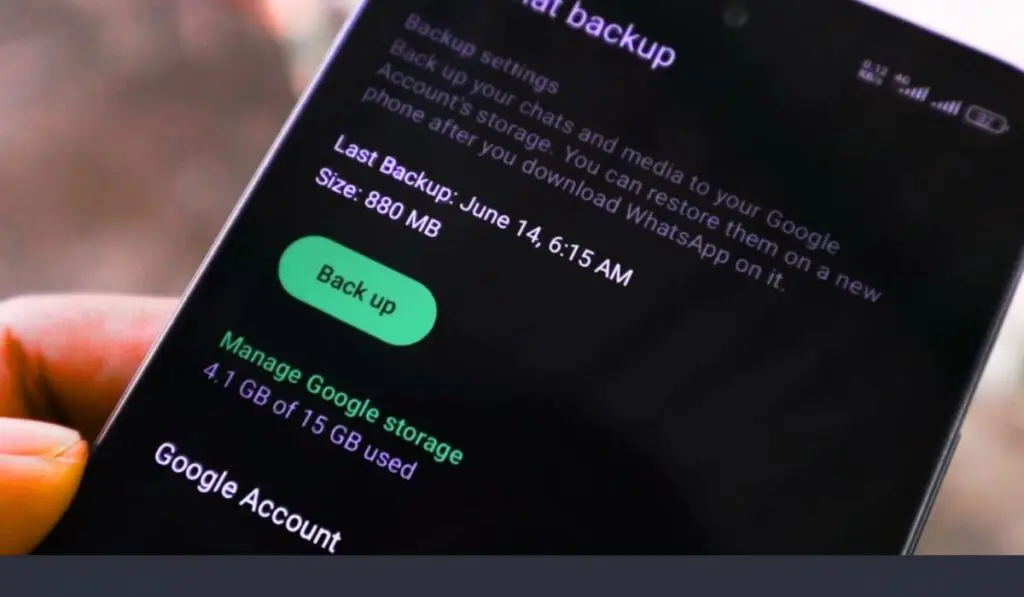
Messaging apps store images, videos, and documents silently.
WhatsApp:
- Open WhatsApp
- Settings → Storage and Data
- Storage Usage
- Delete large media files
Telegram:
- Settings → Data and Storage
- Storage Usage
- Clear cache
Many users solve phone storage full but nothing to delete after this step.
4. Delete Download Folder (Often Overlooked)
Files downloaded from browsers and apps stay forever.
Steps:
- Open File Manager
- Go to Downloads
- Sort by size
- Delete unnecessary files (PDFs, APKs, ZIPs)
5. Remove Duplicate Files
Duplicate photos and videos waste a huge amount of space.
How:
- Use the Google Files app
- Open Clean
- Tap Duplicate Files
- Review and delete safely
This is a very effective fix for a phone storage full but nothing to delete.
You can also use Google’s Files app, which safely identifies duplicate files and junk data on Android devices.
6. Clear Google Photos Trash (IMPORTANT)
Deleting photos doesn’t free space immediately.
Steps:
- Open Google Photos
- Go to Trash
- Tap Empty Trash
Until you empty the trash, storage remains occupied.
7. Move Photos & Videos to Cloud
If you can’t delete files:
- Upload photos to Google Photos
- Enable Backup & Sync
- Tap Free Up Space
This keeps your files safe and clears local storage.
8. Check “Other” or “System Data.”
Large “Other” or “System” storage is a common reason for phone storage full but nothing to delete.
Fix:
- Restart phone
- Clear cache partition (if available)
- Update system software
System storage usually shrinks after a cleanup and reboot.
9. Uninstall Unused Apps (Not Just Disable)
Disabled apps still occupy space.
Steps:
- Settings → Apps
- Sort by size
- Uninstall apps you haven’t used in 30+ days
Games and social apps are usually the biggest.
10. Reset App Preferences
Corrupted app settings can cause storage misreporting.
Steps:
- Settings → Apps
- Tap 3 dots → Reset App Preferences
This does NOT delete data.
11. SD Card Not Detected? (If Applicable)
If your phone supports SD cards:
- Reinsert the SD card
- Set the SD card as the default storage
- Move media files to the SD card
12. Factory Reset (Last Resort)
⚠️ Only if nothing works.
Before resetting:
- Backup photos & contacts
- Sync Google account
Factory reset clears hidden junk, causing phone storage full but nothing to delete.
Bonus Tip: Storage Full Slowing Your Phone?
Low storage causes:
- Lag
- App crashes
- Update failures
Clearing space improves performance instantly.
How Hidden System Files Cause Storage Issues
One major reason why users face the phone storage full but nothing to delete problem is hidden system files that grow silently over time. Android stores logs, temporary update files, thumbnails, and cached system data that users cannot easily see or manage.
For example, when apps update in the background or fail during installation, leftover files remain in storage. These files slowly accumulate and cause your phone to show incorrect storage usage. This makes it feel like your phone storage is full but nothing to delete, even though your personal files are already minimal.
Restarting your phone regularly helps reduce this issue, as some temporary system files are cleared automatically during reboot. However, if the problem persists, clearing the app cache and updating the system software becomes essential.
Does Clearing the Cache Delete Important Data?
Many users hesitate to clear the cache because they fear losing data. The good news is: clearing the cache does NOT delete personal information.
When you clear the cache:
- Login details may refresh
- Temporary files are removed
- App performance improves
It does not delete:
- Photos
- Messages
- Accounts
- App data
If your phone storage is full but nothing to delete, clearing cache is one of the safest and most effective fixes you can apply without risk.
How Often Should You Clean Phone Storage?
To avoid seeing the phone storage full but nothing to delete message again, you should adopt a regular cleaning habit.
Recommended routine:
- Clear cache once every 2–3 weeks
- Review the Downloads folder monthly
- Check WhatsApp/Telegram storage every month
- Keep at least 15–20% free storage
Phones perform best when free storage is available. Keeping your storage optimized not only prevents warnings but also improves speed, battery life, and app stability.
Storage Myths You Should Ignore
Many people believe that deleting apps alone solves the phone storage full but nothing to delete issue. In reality, app cache and media files consume more space than apps themselves.
Another myth is that a factory reset is always required. In most cases, careful cleanup can solve the issue without resetting your phone.
If your phone also has internet issues, check our guide on Phone Connected to WiFi but No Internet. Or if you are facing the Mobile Data Not Working issue, you can visit our latest guides to resolve that as well.
Final Thoughts
If your phone storage is full but nothing to delete, the problem is usually hidden files—not your personal data. By following this guide, you can safely free up storage without deleting important photos or apps.