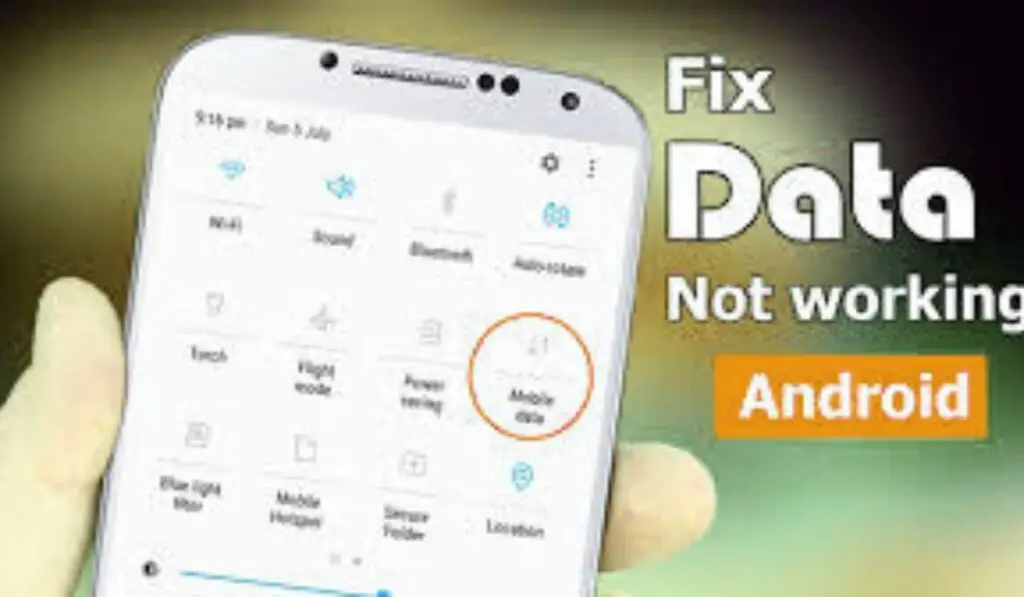
Phone connected to wifi but no internet? This is a very common issue faced by both Android and iPhone users. You may see full WiFi signal bars, but apps like YouTube, WhatsApp, or Google Chrome fail to load pages.
The good news is that this problem is usually easy to fix and does not require any technical knowledge. In this guide, you’ll learn simple and safe solutions you can try at home to get your internet working again in just a few minutes.
Why Is My Phone Connected to WiFi but No Internet?
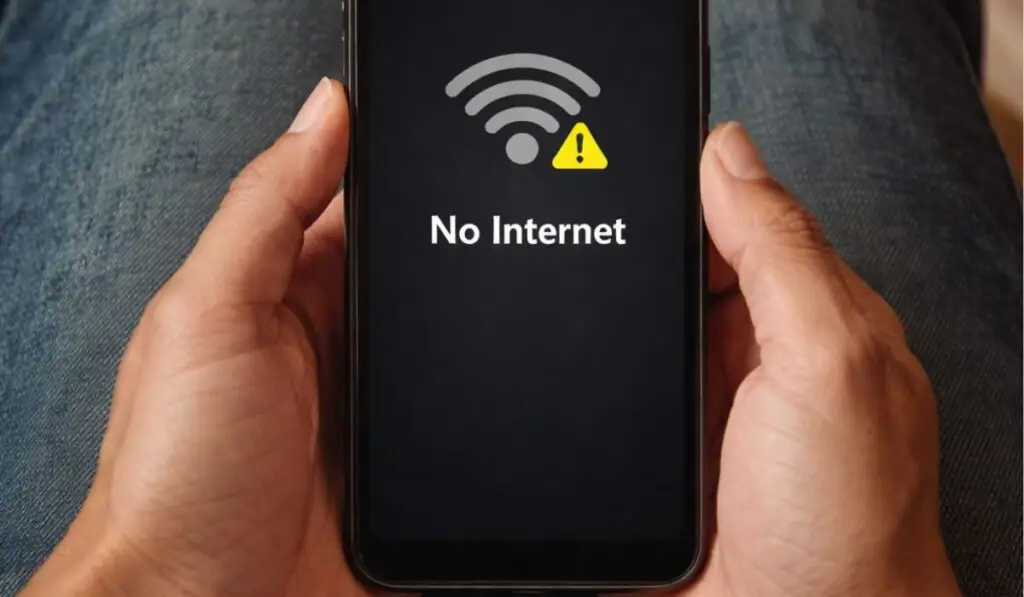
There can be several reasons why your phone connected to WiFi but no internet access. Some of the most common causes include:
- Temporary router or modem issues
- Internet service provider (ISP) problems
- Incorrect network or DNS settings
- Software glitches on your phone
Understanding the cause helps you apply the correct fix, which we’ll cover below.
How to Fix Phone Connected to WiFi but No Internet
Try the following solutions one by one. In most cases, the problem is solved after the first few steps.
Turn WiFi Off and On
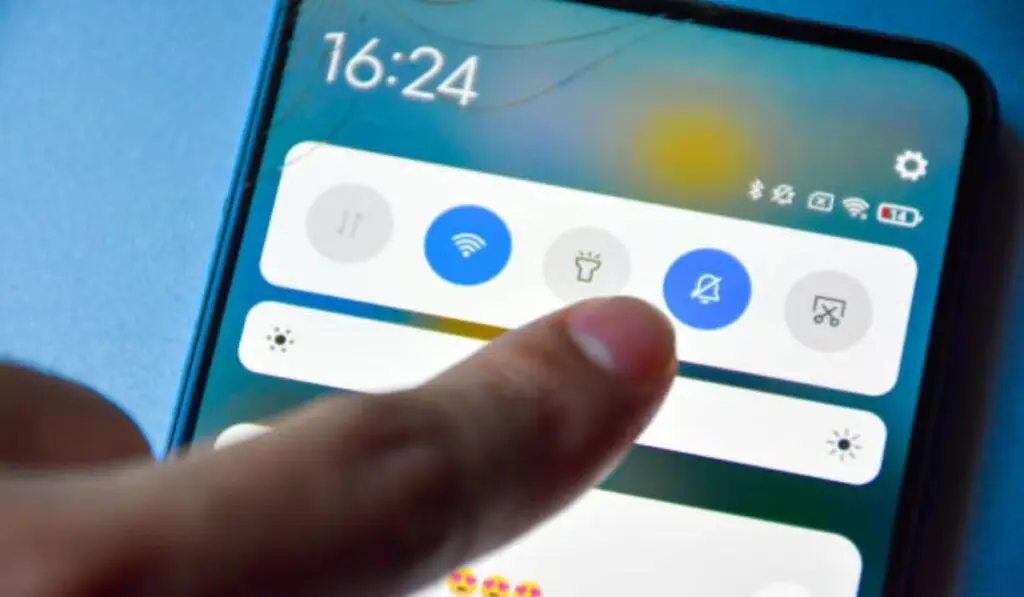
This is the simplest fix and often works instantly.
- Go to Settings
- Turn WiFi off
- Wait for 10 seconds
- Turn WiFi back on
This refreshes the network connection and removes minor glitches. It can mostly solve phone connected to wifi but no internet issues.
Restart Your Phone
Restarting your phone clears temporary system bugs that may interfere with internet connectivity.
- Press and hold the power button
- Tap Restart or Reboot
- Wait for the phone to turn back on
Once restarted, reconnect to the WiFi network and check if the internet works.
Restart the WiFi Router
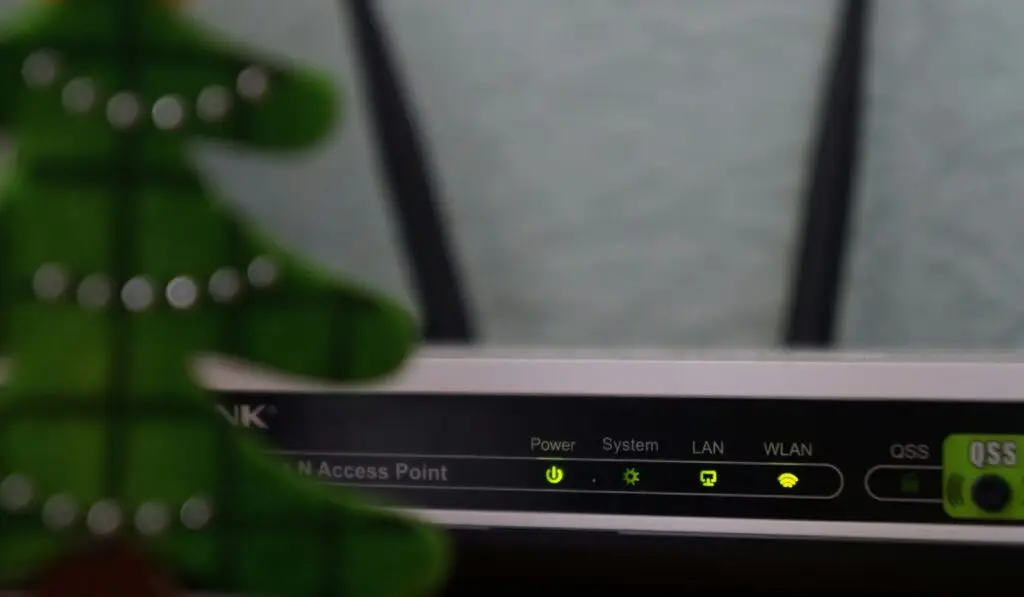
Sometimes the issue is not your phone, but the router itself.
- Turn off the router
- Unplug it from the power source
- Wait for 30 seconds
- Plug it back in and turn it on
Wait until all lights stabilize, then reconnect your phone to WiFi.
Forget and Reconnect the WiFi Network
If the saved WiFi settings are corrupted, reconnecting can fix the issue.
- Open Settings → WiFi
- Tap on your connected network
- Select Forget Network
- Reconnect by entering the WiFi password again
This creates a fresh connection between your phone and the router.
Check Date and Time Settings
Incorrect date and time settings can prevent your phone from accessing the internet.
- Go to Settings
- Open Date & Time
- Enable Automatic date and time
After enabling this, reconnect to WiFi and test the internet.
Turn Off VPN (If Enabled)
If you are using a VPN, it may block internet access.
- Disable the VPN temporarily
- Reconnect to WiFi
- Check if the internet works
If it does, change VPN servers or stop using the VPN on that network.
Does This Problem Affect Android and iPhone Differently?
No. This issue occurs on both Android and iPhone devices. While menu names may differ slightly, the fixes mentioned above work the same way on both platforms.
If you are using an older phone model, restarting the router and phone usually solves the issue faster.
What to Do If Phone connected to wifi but No Internet?
If none of the above solutions work, try these final steps:
- Test the WiFi on another device
- Contact your internet service provider
- Reset network settings on your phone (last option)
If multiple devices have no internet, the issue is likely with your ISP.
Final Thoughts
When your phone connected to WiFi but no internet, it can be frustrating. However, the problem is usually small and easy to fix. By following the steps in this guide, most users can restore their internet connection within minutes.
If this guide helped you, feel free to explore more phone troubleshooting tips on our website.